 Bilal Siddiqui
Key takeaways
Vacation mode helps Amazon sellers temporarily pause their operations to avoid order issues and negative feedback.
It’s most beneficial for FBM (Fulfilled by Merchant) sellers—FBA (Fulfilled by Amazon) listings remain active.
Use vacation settings during personal breaks, emergencies, or business interruptions.
Setting it up is simple via Seller Central and can be reversed anytime.
Alternatives like adjusting handling time or hiring support may suit shorter absences.
Amazon seller vacation mode is the setting sellers reach for when they need to step away, and it does exactly one job well. It takes seller-fulfilled offers out of circulation so buyers stop placing orders nobody is around to ship.
What it does not do is clear the account. Orders placed before you flipped the switch still belong to you. Returns keep arriving. Buyer messages keep landing in the queue with a response clock attached. Subscription and storage charges keep posting. And if any of your inventory sits in an Amazon fulfillment center, you have not actually stopped selling at all, because those offers stay live and Amazon keeps shipping them.
That gap between "I paused my store" and "my account is genuinely covered" is where sellers get burned. This guide walks through what changes when you set your listing status to Inactive, what keeps running regardless, how to enable the setting properly, and what a real return from vacation looks like.
One naming note before anything else. Most sellers say "vacation mode," and the phrase is a useful shorthand, but Amazon does not label it that way in the account. The official control changes your listing status between Active and Inactive for each marketplace, and you reach it through Vacation Settings. Same feature, more precise language.
What Vacation Mode Changes and What Keeps Running
The table below is the short version of this entire article. Everything after it is detail on why these distinctions matter and what to do about them.
Area | What changes | What continues | Seller action |
|---|---|---|---|
Seller-fulfilled offers | Removed from product detail pages and search results in the marketplaces you set to Inactive | Listing and catalog records stay intact | Set status early enough for open orders to clear |
FBA offers | Nothing. They stay live | Amazon keeps selling and fulfilling them | Expect orders and plan stock accordingly |
Existing orders | Nothing. None are canceled | Full fulfillment, shipping confirmation, and delivery obligations | Ship or resolve everything open before you go |
Buyer messages | Nothing | 24 hour response requirement, weekends and holidays included | Assign a named person to cover the inbox |
Returns and claims | Nothing | Return requests, refunds, A to z claims, chargebacks | Clear what is open and cover what arrives |
Advertising and promotions | Nothing automatic | Campaigns stay enabled in the advertising console | Review and adjust each one separately |
Fees | Nothing | Subscription and FBA storage charges post as normal | Budget for them; this is not a billing pause |
Inventory | Nothing | Storage exposure, stranded stock, inbound shipments, removals | Review condition and quantities before leaving |
Account Health and policy notices | Nothing | Notifications and response deadlines continue | Check before departure and immediately on return |
The pattern is consistent. Vacation Settings control the availability of future seller-fulfilled offers. They do not touch obligations that already exist, and they do not reach into other systems.
How to Turn Vacation Settings On
If you are reading this in a hurry because something has gone wrong, this is the part you need.
Open Settings in Seller Central.
Select Account settings.
Under Store Status, go to Account Overview.
Select Vacation Settings.
Set the relevant marketplace listings to Inactive.
Save the changes.
Amazon documents Active and Inactive as the two listing-status states, and that is the language you will see on the settings page. Some accounts and some marketplaces present slightly different navigation labels or a slightly different interface treatment, so if your menu wording does not match exactly, look for Store Status and Vacation Settings rather than hunting for an identical menu path. If you are still finding your way around the account, the Seller Central dashboard guide covers where the main settings areas live.
Set or verify Vacation Settings through Seller Central in a desktop browser. The Amazon Seller app is genuinely useful while you are away for monitoring messages, orders, alerts, and account activity, but treat it as a monitoring tool rather than a full substitute for desktop Seller Central.
Timing
Seller-fulfilled offers should come off product detail pages and search results within roughly an hour of being set to Inactive. When you switch back to Active later, they should reappear on a similar timeline.
That hour is the platform's side of the job, not yours. The reason to enable Vacation Settings before you leave rather than on your way out the door is that Pending orders and existing obligations need time to resolve, and none of them are canceled by the setting. Give yourself enough runway that the queue is genuinely empty when you go, not just closed to new arrivals.
Also worth separating: Amazon has other scheduling controls related to public holidays and shipping calendars that carry their own processing times. Those are different settings with different behavior. Do not assume a timing note from one applies to the other.
Choosing marketplaces
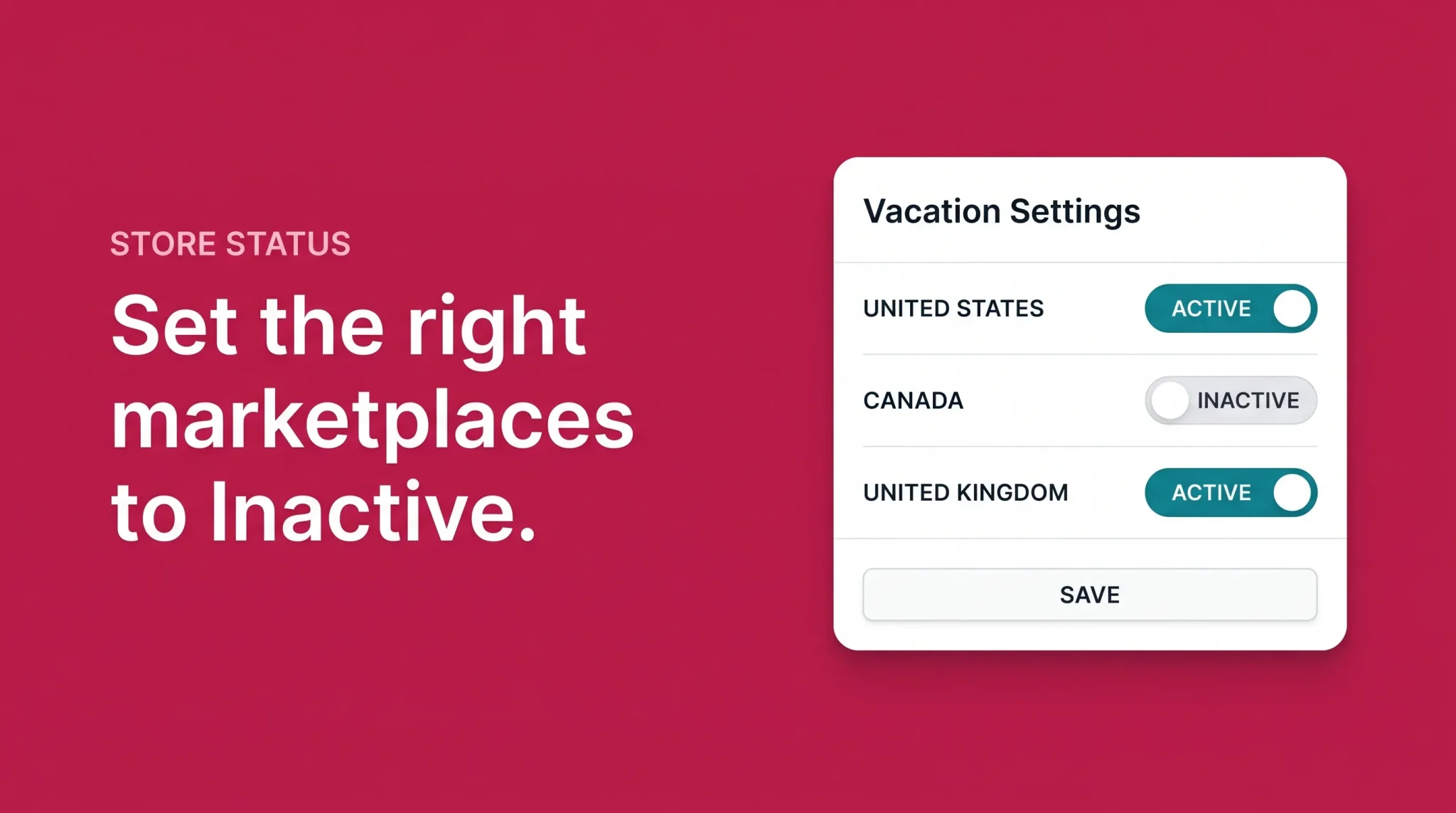
If you sell in more than one Amazon marketplace, you can change listing status for all of them at once or for selected marketplaces individually. A seller can be Inactive in Canada while trading normally in the United States.
This is genuinely useful, and it is also where mistakes happen. Setting one marketplace to Inactive does not pause every connected marketplace automatically. Check each one before you leave, and check each one again when you return, because a marketplace left Inactive after your return is silently costing you sales.
Seller-Fulfilled and FBA Offers Behave Differently
This distinction decides whether your vacation plan is sound or whether it has a hole in it.
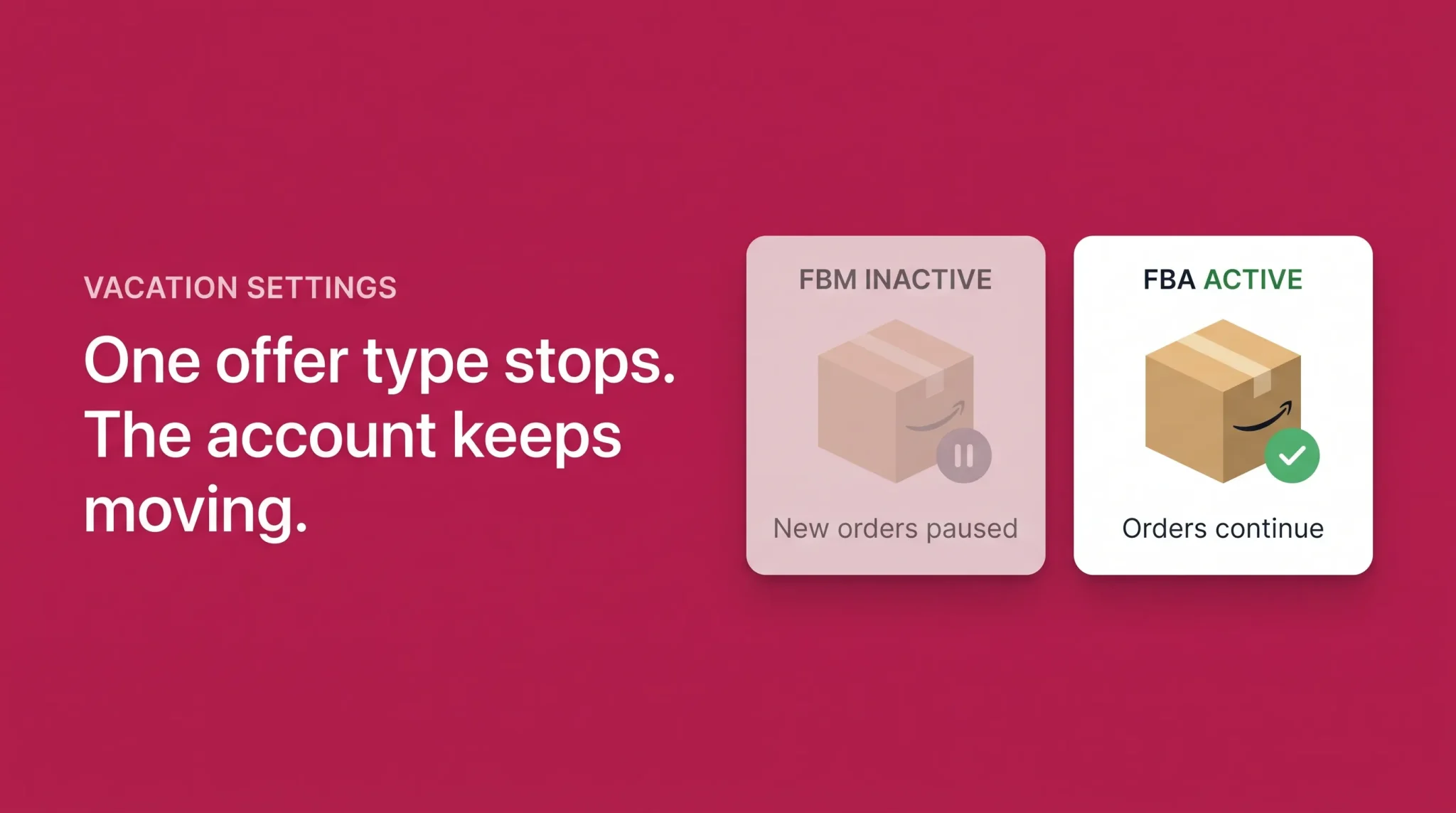
Seller-fulfilled offers. When you set a marketplace to Inactive, your seller-fulfilled offers come off product detail pages and search results there. Buyers cannot place new orders against them. The listing itself is not deleted, the catalog record is untouched, and nothing about your product data changes. You are suppressing an offer, not removing a product.
FBA offers. These stay active and purchasable. Amazon holds the inventory and Amazon does the fulfillment, so there is no operational reason for the platform to hide them, and it does not.
For a seller who is entirely FBM, this is straightforward. For a mixed seller, it is the single most common misunderstanding about the feature. You can enable Vacation Settings across every marketplace you sell in and still take orders every day you are gone, because your FBA catalog never went anywhere.
That is not necessarily a problem. It is only a problem when you did not expect it. Amazon generally handles fulfillment, customer service, and standard returns on FBA orders, so the day to day work of those orders is not landing on you. What still needs a set of eyes is the account layer around them: buyer messages that require a seller response, claims and policy notices, return outcomes and reimbursements, inventory condition and stranded stock, and any compliance deadline that comes due while you are gone.
So the practical question for a mixed seller is not whether to enable Vacation Settings. It is whether your FBA stock levels and account coverage can carry an absence of the length you are planning. If you want the full picture on how FBA fulfillment and returns work, that belongs in a dedicated fulfillment guide rather than here.
Existing Orders and Ongoing Account Responsibilities
Vacation Settings affect the availability of future seller-fulfilled offers. That is the whole scope. They do not cancel or close anything that already exists.
Nothing on this list stops because you went Inactive: Pending orders, unshipped orders received before activation, returns, refund responsibilities, A to z Guarantee claims, chargebacks, buyer messages, performance notifications, policy deadlines, support cases, inbound shipments, and removal orders in progress.
Pending orders deserve a specific mention because sellers assume they will drop away and they do not. An order that was placed before the status change is a live order with normal timelines attached. If you want the detail on order states and how to work the queue in Seller Central, the open orders and order management guide covers that properly, and there is no reason to duplicate it here.
Buyer messages
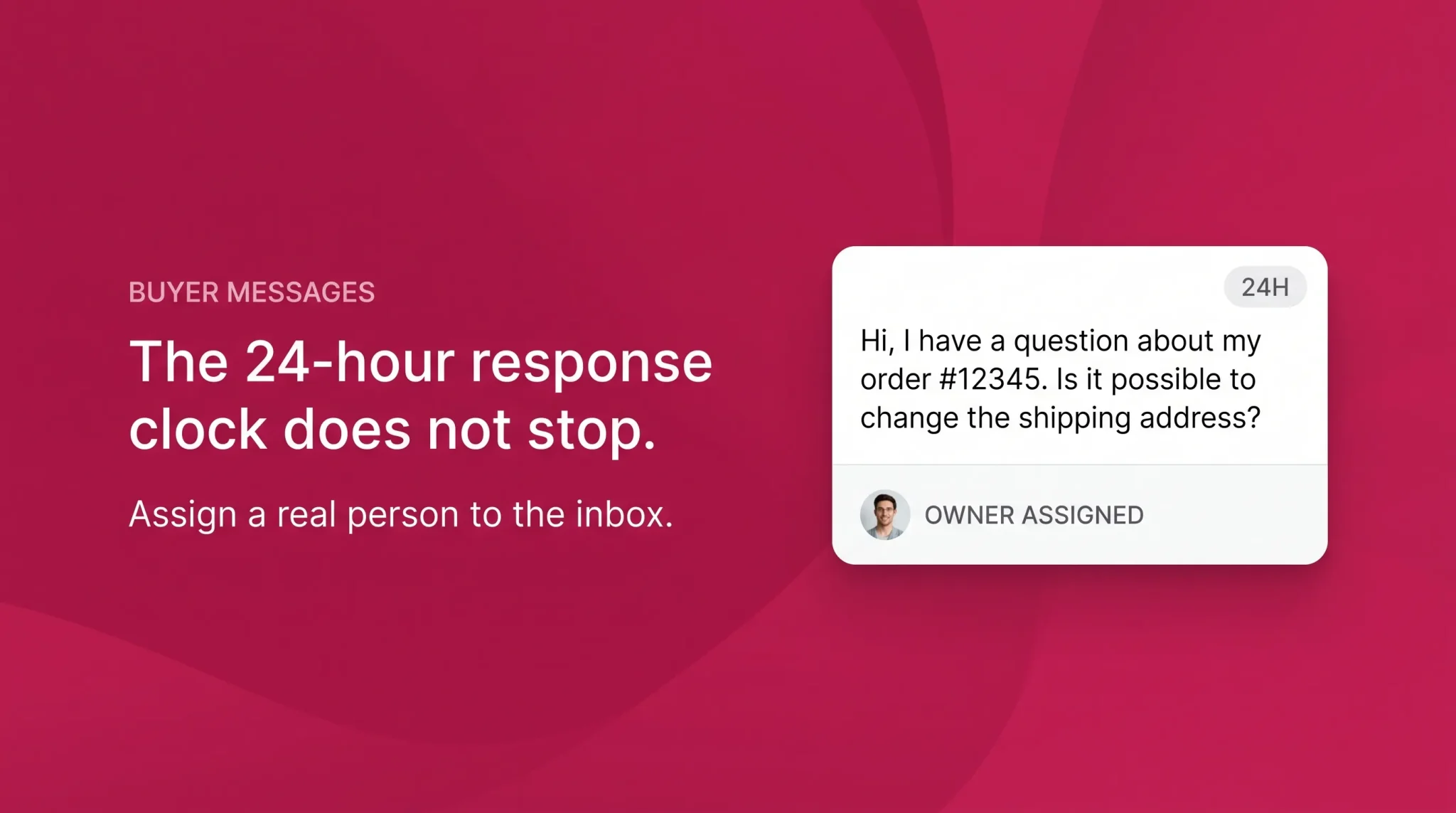
Sellers must respond to buyer messages that require a response within 24 hours, including weekends and holidays, and that requirement does not lift because seller-fulfilled listings are Inactive.
A few practical points that follow from it. Auto-responders are not treated as a valid response, so an away message does not satisfy the requirement no matter how well written it is. If a message genuinely needs no reply, it should be marked No Response Required rather than ignored. And if you cannot resolve the underlying issue immediately, still reply within the window and give the buyer a realistic follow-up expectation, because a holding reply that sets an honest timeline is a response and silence is not.
International sellers should confirm the exact requirement for their marketplace, since messaging expectations are documented per store.
The operational implication is simple. Somebody has to own the inbox daily while you are away, and it has to be a person, not a rule.
Returns, claims, and account notices
Return requests, refunds, A to z Guarantee claims, and chargebacks all continue to arrive and all carry their own deadlines. So do performance notifications, policy notices, and open support cases. Amazon does not pause a compliance deadline because a store is on vacation.
This is the category sellers most often forget, and it is the category with the sharpest consequences, because these items escalate on their own if nobody touches them.
The Handoff Before You Leave
The useful way to think about a vacation is not "how do I turn the store off" but "who is holding the account while I am gone." Vacation Settings handle one piece of that. A person handles the rest.
Decide who owns buyer messages and confirm they can actually get into the account, with the right user permissions and a Two-Step Verification method that works while you are traveling. Nothing sinks a coverage plan faster than a colleague who has the responsibility but not the login.
Decide who watches for returns, claims, and Account Health notices, and how often. Daily is the right cadence given the 24 hour message window, and it does not require much time once orders have stopped arriving.
Decide what happens if something needs a real decision, a reimbursement dispute, a policy notice, a stranded ASIN. Either your cover has the authority to act or they have a reliable way to reach you. Both work. Neither being true does not.
And write down the date you plan to set marketplaces back to Active, with a reminder attached. Forgetting to reactivate is one of the most expensive small mistakes in this whole process, and it is entirely avoidable.
Ads, Promotions, Fees, and Inventory
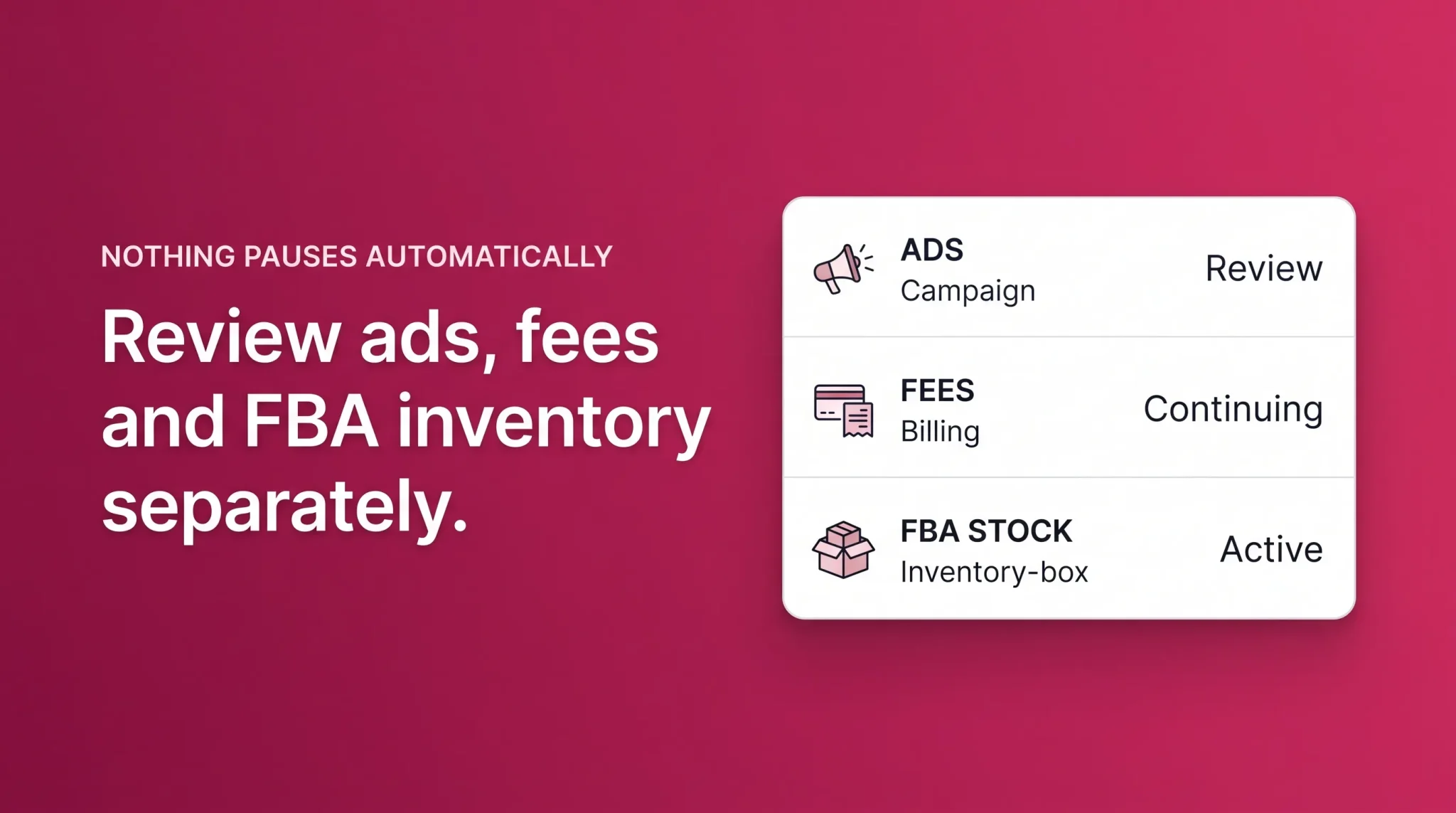
Vacation Settings control seller-fulfilled offer availability. They are not a universal campaign-management control, so advertising, coupons, deals, promotions, Subscribe and Save commitments, and off-Amazon campaigns all need a separate review before you leave.
What actually happens to ads is more nuanced than either extreme you will read elsewhere. Ads tied only to seller-fulfilled offers that have become inactive or ineligible may stop serving, because there is no eligible offer to advertise. But the campaigns themselves remain enabled inside the advertising console, and ads pointed at active FBA offers can keep running normally. Promotional tools have their own eligibility, scheduling, and cancellation behavior, so a scheduled deal or a running coupon does not necessarily follow the same logic as a Sponsored Products campaign.
The takeaway is not that everything keeps spending. It is that you cannot assume enabling Vacation Mode has paused anything, and the only way to know what is running is to open the advertising console and the promotions dashboard and look.
Fees
Vacation Mode is not a billing pause. Applicable Professional selling plan subscription fees continue. FBA storage and inventory-related charges continue, because they are driven by what is sitting in the fulfillment center rather than by your store status.
A seller planning a genuinely long pause sometimes reviews their selling plan as a separate decision, and the seller account setup guide covers how the plans differ. That is a business decision with its own trade-offs, not a standard vacation tactic.
Inventory
Your FBA inventory stays in Amazon fulfillment centers. Nothing is returned or held because of a status change.
Stranded and inactive inventory issues do not resolve themselves, and an unattended stranded ASIN accrues storage exposure the entire time. Inbound shipments already in transit continue moving and still have receiving requirements at the other end. Removal orders already in progress continue processing. Disbursements and any account reserve continue under your account's normal rules.
None of this needs deep management while you are away. It needs a look before you go, so you are not returning to a problem that has been compounding for three weeks.
Mistakes That Create Problems While You Are Away
Enabling too late. Setting status to Inactive as you head to the airport leaves a queue of unshipped orders behind you. The setting stops new orders; it does not clear old ones.
Assuming FBA stopped. The mixed-seller trap. If you have inventory in Amazon's network, you are still trading.
Leaving campaigns unreviewed. Not because everything definitely keeps spending, but because you have no idea what is running until you check.
No named message owner. A shared assumption that "someone will see it" is how a 24 hour window gets missed on day two.
Ignoring inbound and stranded stock. Both quietly get worse without attention.
Forgetting a marketplace. Easy to do when you set several individually, in both directions.
Forgetting to switch back. The most avoidable one on the list.
How to Reactivate Safely
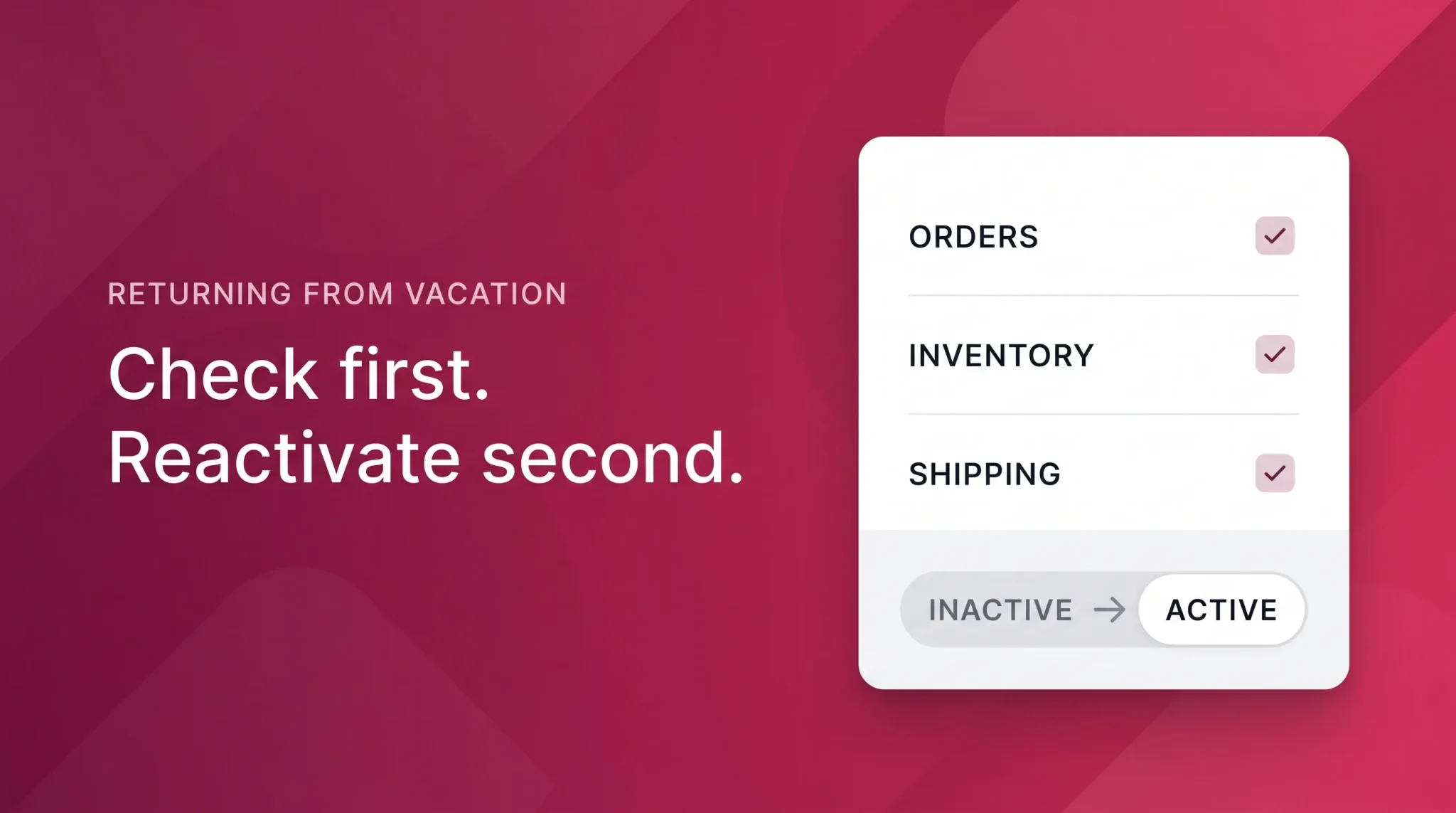
Coming back is not one click. Setting Inactive to Active makes offers available again, but making them available before you have checked what is behind them is how sellers return from vacation into a fresh set of defects.
Work through it in this order:
Review buyer messages, returns, claims, Account Health notices, and open support cases first, before anything is purchasable again.
Check seller-fulfilled quantities against what you actually have on hand.
Confirm handling times still reflect how fast you can genuinely ship this week.
Review shipping templates and the delivery promises they are generating.
Verify carrier pickups and warehouse capacity are back to normal.
Review FBA inventory levels and clear any stranded stock.
Decide deliberately which ads and promotions should restart, rather than letting whatever was left enabled resume by default.
Set each required marketplace back to Active.
Allow roughly an hour for seller-fulfilled offers to reappear.
Watch the first new seller-fulfilled orders closely and confirm they are flowing correctly end to end.
Steps two through five are the ones sellers skip, and they are the ones that cause late shipments in the first week back. A handling time that was accurate before your break may not survive a restart week with a backlog behind it.
On what happens to visibility afterwards, sellers report mixed experiences. Some describe a slow ramp after reactivation, others notice nothing unusual. Amazon does not publish a guaranteed ranking or Buy Box outcome for accounts returning from Inactive status, so treat any confident claim in either direction with skepticism, including your own assumptions.
When Vacation Mode Is Not Enough
Vacation Settings are a blunt instrument by design, and sometimes the situation calls for something narrower or something more permanent.
If you only need to pause selected products, adjust those individual offers or their inventory rather than setting an entire marketplace to Inactive. If the absence is very short, a realistic handling-time change can work, but only when you can still meet every promise you are making, which is a genuine constraint rather than a formality. If a warehouse closure or carrier disruption is the problem, use the operational controls that match the affected offers rather than pausing everything.
For a long absence, the real answer is account coverage plus a separate look at your selling plan. And if you are stopping permanently, that is a different process entirely, handled through the account closure guide rather than through Vacation Settings. Vacation Mode is temporary and reversible by nature. It is not closure, and it is not related to enforcement suspension.
Pre-Departure Checklist
Confirm which marketplaces are going Inactive and which stay Active
Enable Vacation Settings with enough runway before departure
Ship or resolve every open seller-fulfilled order
Review Pending orders, which are not canceled by the setting
Confirm shipment on everything already dispatched
Clear open return requests, refunds, and claims
Name one person who owns buyer messages daily
Check Account Health and clear open performance or policy notices
Review advertising campaigns, coupons, deals, and promotions and adjust deliberately
Check FBA inventory levels, condition, and storage exposure for the absence window
Review inbound shipments and removal orders already in progress
Close or hand off open support cases
Confirm user permissions and Two-Step Verification for whoever is covering
Record the reactivation date and set a reminder
Getting Coverage Instead of Guessing
Most vacation problems are not caused by the setting. They are caused by nobody watching the account for two weeks.
Flairox provides temporary account coverage for sellers stepping away, including Seller Central administration, buyer-message monitoring, order and return oversight, and Account Health monitoring, so the obligations that continue while you are gone have somebody attached to them. We cannot pause Amazon's deadlines or guarantee an account never sees a performance issue, but a planned handoff is a very different thing from an unattended account. If you have a break coming up, it is worth a conversation before you set anything to Inactive.
Frequently asked questions
It sets your listing status to Inactive for the marketplaces you choose, which removes seller-fulfilled offers from product detail pages and search results so buyers cannot place new orders against them.