 Bilal Siddiqui
Key takeaways
Seller Central is organized around a homepage, a top menu, workspaces, a main menu, and an actions panel. Learning those five zones is faster than memorizing individual links.
Account health status sits in the top menu on purpose. It is the one indicator worth checking before anything else.
Notifications arrive through several channels at once. Tuning them is an admin task, not a one-time setup step.
The Amazon Seller app is strongest for orders, messages, alerts, and barcode scanning. It is not a replacement for desktop reporting.
A repeatable daily, weekly, and monthly rhythm prevents most of the small problems that turn into account problems.
Most sellers learn Seller Central by accident. They find the three or four screens their job depends on, memorize the clicks, and never touch the rest of the account until something breaks.
That works until an alert sits unread for a week, or a pending order stalls, or a teammate needs access and nobody knows where permissions live.
This guide maps Amazon Seller Central the way an operator actually uses it: what each part of the dashboard is for, what the Amazon Seller app is genuinely good at, which notifications deserve attention, and what a sane daily admin routine looks like. It is not a setup walkthrough and not a launch playbook. It is the tour you wish you had on week two.
What Amazon Seller Central Actually Is
Amazon Seller Central is the account portal where third-party sellers run their Amazon business. Amazon describes it as a digital hub for everyday operations such as managing orders and inventory, tracking sales, running promotions, and getting support (Amazon Seller Central overview, sell.amazon.com, as of 2026).
Everything an account can do passes through it. Listings, orders, returns, buyer messages, payments, reports, promotions, and settings all live behind the same login, which is why sellers often call it the Amazon seller hub or seller dashboard.
Your selling plan affects what you see inside. Amazon states that both plans include a Seller Central account, with the Individual plan covering essential features and the Professional plan unlocking bulk listing, advanced analytics, and additional programs (Amazon selling plan documentation, as of 2026). Plan pricing and the full feature split belong in our selling plans and fees guide.
One more distinction worth clearing up early, because it confuses new sellers constantly. Seller Central is for third-party sellers who sell directly to customers. Vendor Central is invitation-only and covers wholesale relationships where Amazon buys inventory from a brand and resells it.
How the Seller Central Dashboard Is Laid Out
Amazon refreshed the Seller Central interface, and the current layout is built around five zones rather than one long navigation bar. Once you can name them, the rest of the account stops feeling random.
The layout below reflects Amazon's own documentation of the Seller Central interface as of 2026. Amazon ships changes to this experience regularly, so treat the names as current rather than permanent.
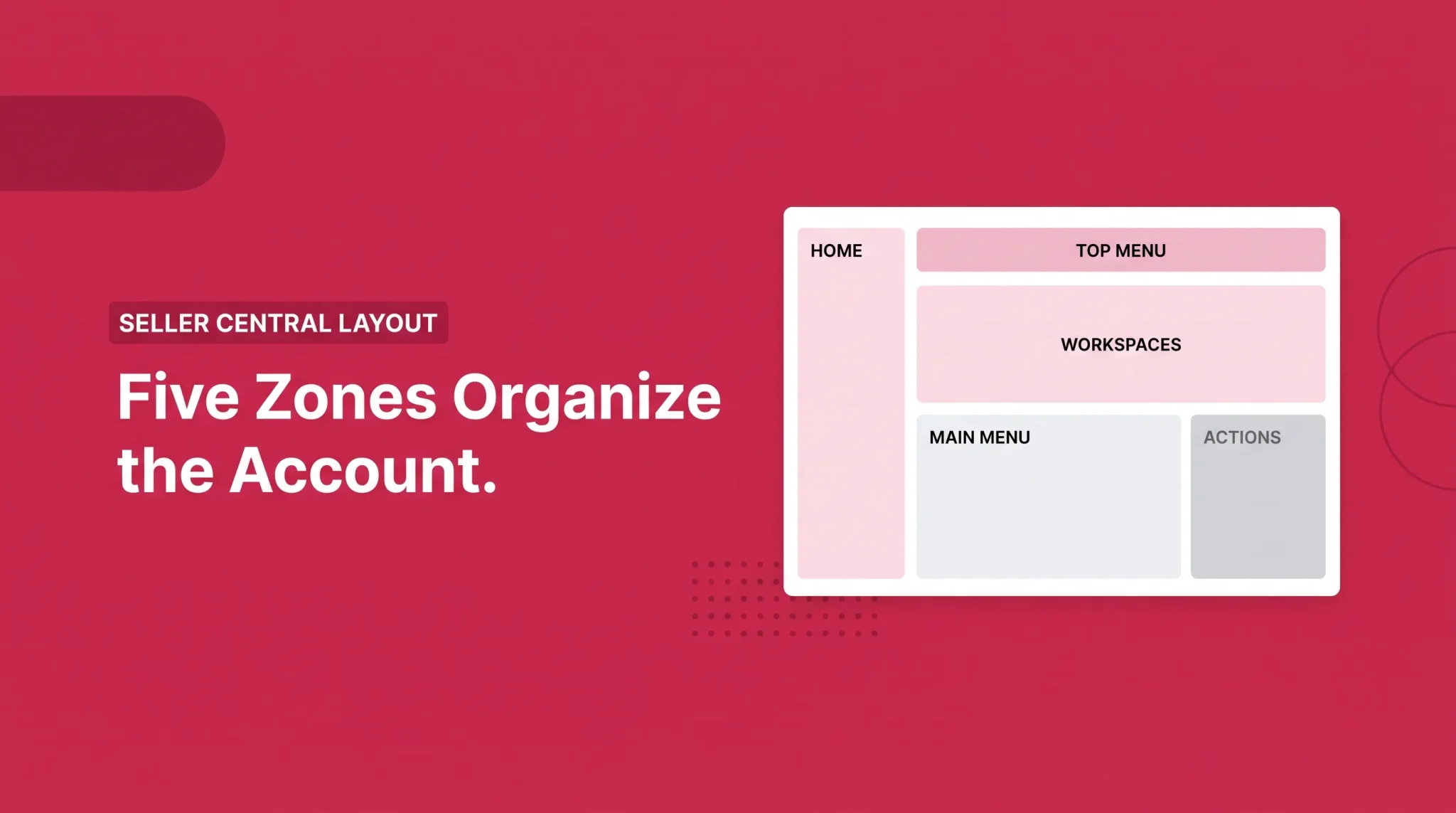
Zone | What it holds | When you use it |
|---|---|---|
Homepage | Customizable charts and digests for sales, orders, and news | First screen of the day, quick pulse check |
Top menu | Search bar, quick links, account health status, settings (gear icon), inbox (letter icon), help (question mark icon) | Jumping to a specific tool or setting |
Workspaces | Grouped tabs for products, orders, supply chain, finances, marketing, and customers | Doing focused work in one operational area |
Main menu | Full tool and program list behind the hamburger icon | Finding something you use occasionally |
Actions panel | Collapsible left panel with alerts and recommendations | Triage, and where account issues surface |
The homepage is a workspace, not wallpaper
Your Seller Central homepage gives a snapshot of what is happening in the business, and Amazon lets you rearrange many of its components. The widgets showing sales, orders, and announcements can be organized around what you actually check.
Use that. If your first move every morning is hunting for the same three numbers, the homepage is configured wrong.
One habit worth building: the homepage is a starting point for action, not a reporting tool. Sales widgets show revenue movement, not profit, and they are not a substitute for pulling a report.
The top menu is where the important status lives
The top menu carries your account health status, and selecting it opens the Account Health page. That page holds alerts, policy announcements, and metrics tied to customer service, shipping performance, and policy compliance.
Amazon also puts your settings behind the gear icon, your inbox behind the letter icon, and help resources behind the question mark. Those three icons cover most of the admin work in this article.
The search bar in the top menu is faster than menu-diving once you know the name of a tool. There is also a bookmark feature for pages you open constantly, which is the single most underused convenience in the interface.
Workspaces group the work
Workspaces collect related charts, tools, and resources for one area of operations. Orders live in one place, inventory in the supply chain workspace, payments and reports in finance, feedback and search-query insight in customers.
This matters for delegation. When you tell someone to work in the Orders workspace, you are describing a defined surface rather than a scavenger hunt.
The actions panel is your triage queue
The collapsible left panel surfaces alerts that may need attention and prioritizes recommendations. It also holds the entry point to Seller Assistant, Amazon's in-account AI helper.
Amazon reported that Seller Assistant had more than 230,000 monthly users in 2025 and that sellers accepted its recommendations more than 90 percent of the time (Amazon Small Business Empowerment Report 2025, cited by Amazon in 2026). Useful context, with the obvious caveat: acceptance rate measures adoption, not whether a recommendation fits your margins. Read recommendations, do not autopilot them.
The Account Sections Worth Knowing by Name
Four sections carry most of the administrative weight of an Amazon Seller Central account. Everything else you can look up when you need it.
Account Health. Reached from the status indicator in the top menu. It shows your current values against Amazon's published targets across customer service, shipping, and policy compliance, plus any active violations. Diagnosing and appealing account health problems is a bigger subject and has its own guide.
Settings, behind the gear icon. Login settings, notification preferences, user permissions, shipping settings, tax settings, and account information all sit here. If you cannot find an account-level control, this is the first place to look.
Inbox and buyer messages. The letter icon covers Amazon's messages to you. Buyer messages are a separate stream, and mixing the two up is how sellers miss the ones with a clock attached.
Finance and the payments dashboard. The finance workspace gives an overview of sales, product charges, fulfillment costs, expenses, refunds, and net proceeds. Selecting Manage payments opens the Payments Dashboard, where the Transaction View breaks a single transaction down into charges, taxes, and expenses, and the bottom of the page shows details of your next disbursement.
Business Reports also live in the reporting side of the account and cover sessions, page views, unit session percentage, and sales by ASIN. Those metrics deserve a proper treatment, and our Amazon analytics and business reports guide handles the interpretation side.
Amazon Seller Notifications, and How to Stop Drowning in Them
Notifications are where good accounts quietly go wrong. The information arrives, nobody reads it, and a fixable issue becomes a suppressed listing.
It helps to separate the streams, because they have different urgency and different homes.
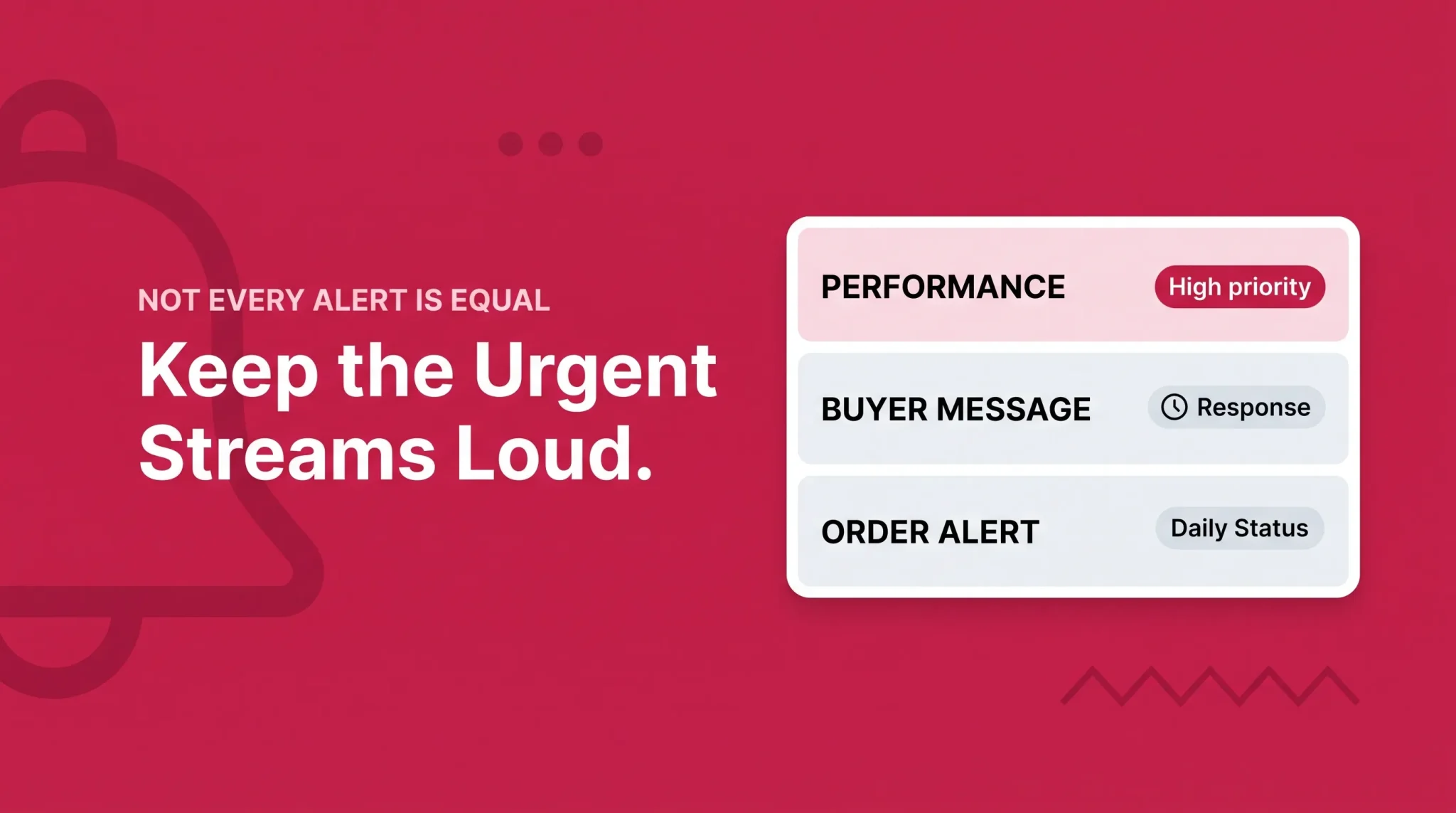
Notification type | Where it shows up | Typical urgency |
|---|---|---|
Performance notifications and policy warnings | Account Health page, actions panel, email | Highest, often time-bound |
News and announcements | Homepage, app homepage, email digests | Low, but read the policy ones |
Buyer messages | Buyer messages inbox, app messaging | High, response clock applies |
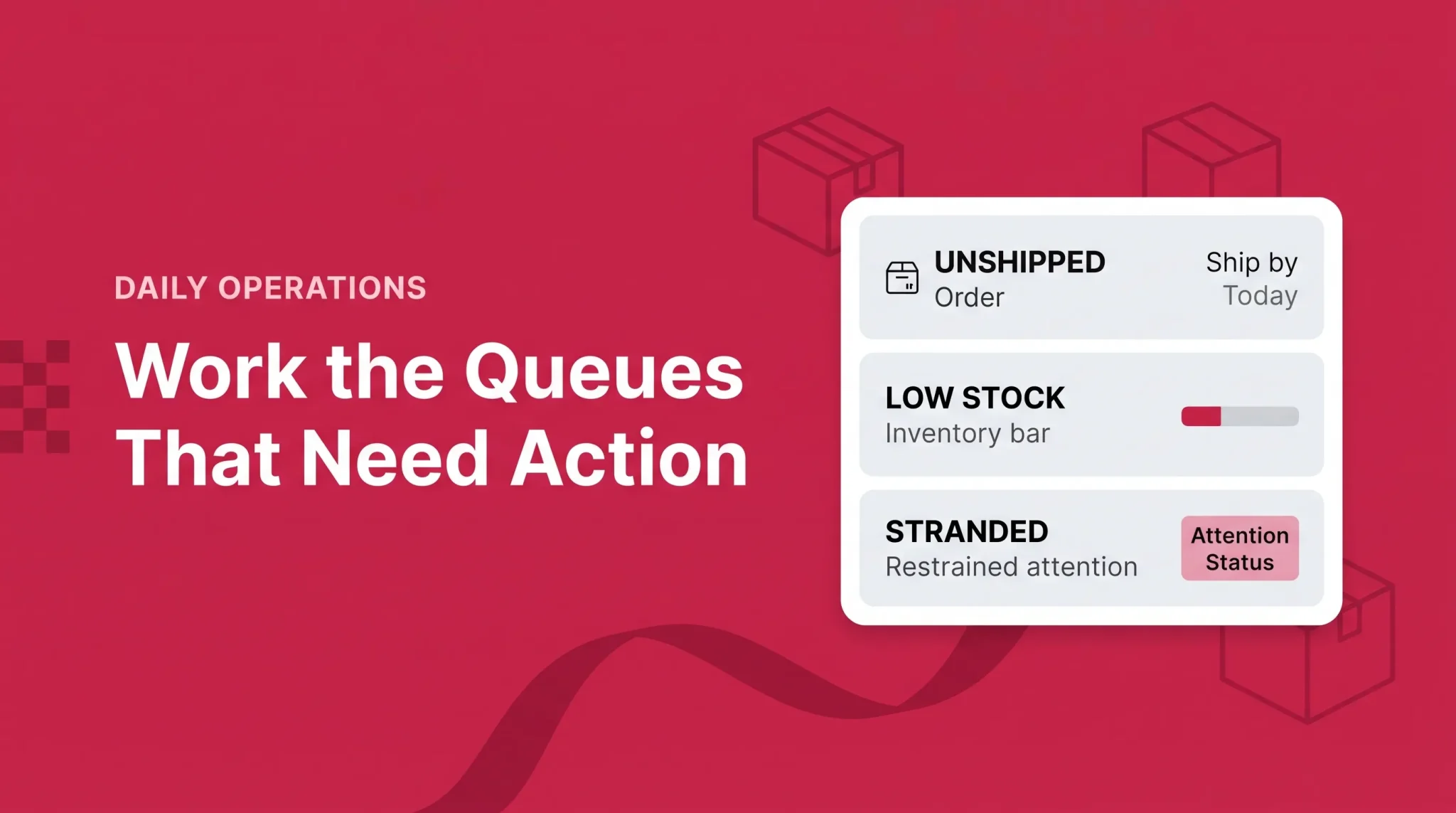
Order and inventory alerts | Orders workspace, homepage widgets, app push | Operational, daily |
Case and support updates | Support case log, email | Depends on the case |
Performance notifications are the ones to treat as non-negotiable. They frequently include a deadline or a required response, and Amazon tends to escalate when a window closes without action.
Buyer messages carry their own expectation. Amazon's guidance to sellers, repeated across its help content and seller forums, points to replying within roughly a day, and slow replies feed into customer service metrics. Confirm the current requirement for your marketplace on the buyer-seller messaging help page, since the wording and windows have shifted over time.
Two practical settings changes fix most notification chaos. First, prune your notification preferences under the gear icon so that low-value emails stop training your team to ignore the inbox. Second, turn on push notifications in the Amazon Seller app for orders and messages only, so the phone alerts you for things that are genuinely time-sensitive.
Order Shortcuts That Save Real Time
The Orders workspace gives an overview of customer orders including pending ones, and it is where you handle order details, returns, and customer claims.
Three order states cause most of the confusion, so it is worth being precise about them.
Pending. The order exists but is not yet actionable. Payment authorization is still in progress, so you generally cannot ship or cancel it in the usual way. Pending orders often clear themselves, and treating them as lost sales leads to bad decisions.
Unshipped. Your queue if you fulfill orders yourself. This is the state that drives late shipment problems when it goes unwatched.
Returns and claims. Handled from the same workspace. Return authorizations and A-to-z claims both have response windows.
If you fulfill your own orders, the unshipped filter is the single most valuable saved view in the account. Open it, work it to zero, close it.
Sellers using Fulfillment by Amazon still need this workspace, just for different reasons. Returns, buyer messages, and claims remain yours to monitor even when Amazon handles the pick and pack.
Inventory Shortcuts Without the Deep Dive
Inventory lives primarily in the supply chain workspace, and Amazon provides a Manage Amazon inventory dropdown that lets you coordinate FBA and merchant-fulfilled inventory separately. Keeping those two views distinct is the point, since the decisions they drive are different.
For day-to-day admin, you are looking for three things: what is low, what is inactive, and what is stranded or otherwise unsellable. Each of those is a signal to act, and all three are visible without running a report.
Price edits also happen from the inventory side of the account, and Amazon offers rule-based repricing through its Automate Pricing tool on the Professional plan. Inventory planning, restock quantities, and forecasting are their own discipline and belong in our inventory management guide rather than here.
The Amazon Seller App: What It Is Actually Good For
The Amazon Seller app is Amazon's free mobile app for sellers, available on iOS and Android, and it syncs with your selling account (Amazon Seller app documentation, as of 2026). You can download it from the Apple App Store or Google Play, or from the link in the Seller Central homepage footer.
Amazon groups the app's headline features into five areas, and each maps to a real workflow.
Barcode scanning and product search. Scan a barcode or point your camera at a product to see whether it already exists in the Amazon store, then create an offer. This is why sellers call it the Amazon seller scanner app.
Global selling with single sign-on. Switch between the countries and regions where you sell without juggling logins.
Customizable notifications. Choose which alerts reach your phone.
Photo Studio. Take, edit, and save product photos in the app, with checks against Amazon's listing image standards.
Seller Support access. Contact support directly from the app.
Beyond those, Amazon documents the app handling sales monitoring, product research, listing creation and edits, inventory and returns, fulfillment tracking, customer communications including public replies to reviews, and advertising controls such as budget changes and campaign pausing.
Here is the honest split between the two surfaces.

Task | Better on the app | Better on desktop |
|---|---|---|
Reacting to a new order or buyer message | Yes | |
Checking whether an alert needs action today | Yes | |
Sourcing and scanning products in a store | Yes | |
Quick price or quantity change | Yes | |
Pulling and comparing business reports | Yes | |
Reconciling payments and fees | Yes | |
Bulk listing or bulk edits | Yes | |
Building promotions or managing campaigns properly | Yes |
Use the app as an alerting and response tool, and the desktop for anything analytical. Sellers who try to run reporting from a phone end up making decisions on a partial view.
A Daily Admin Workflow That Holds Up
Cadence beats intensity here. The point of a routine is that nothing waits long enough to become expensive.
Treat the rhythm below as a working template rather than an Amazon requirement. Volume, fulfillment method, category, and team size all change what belongs in each column.
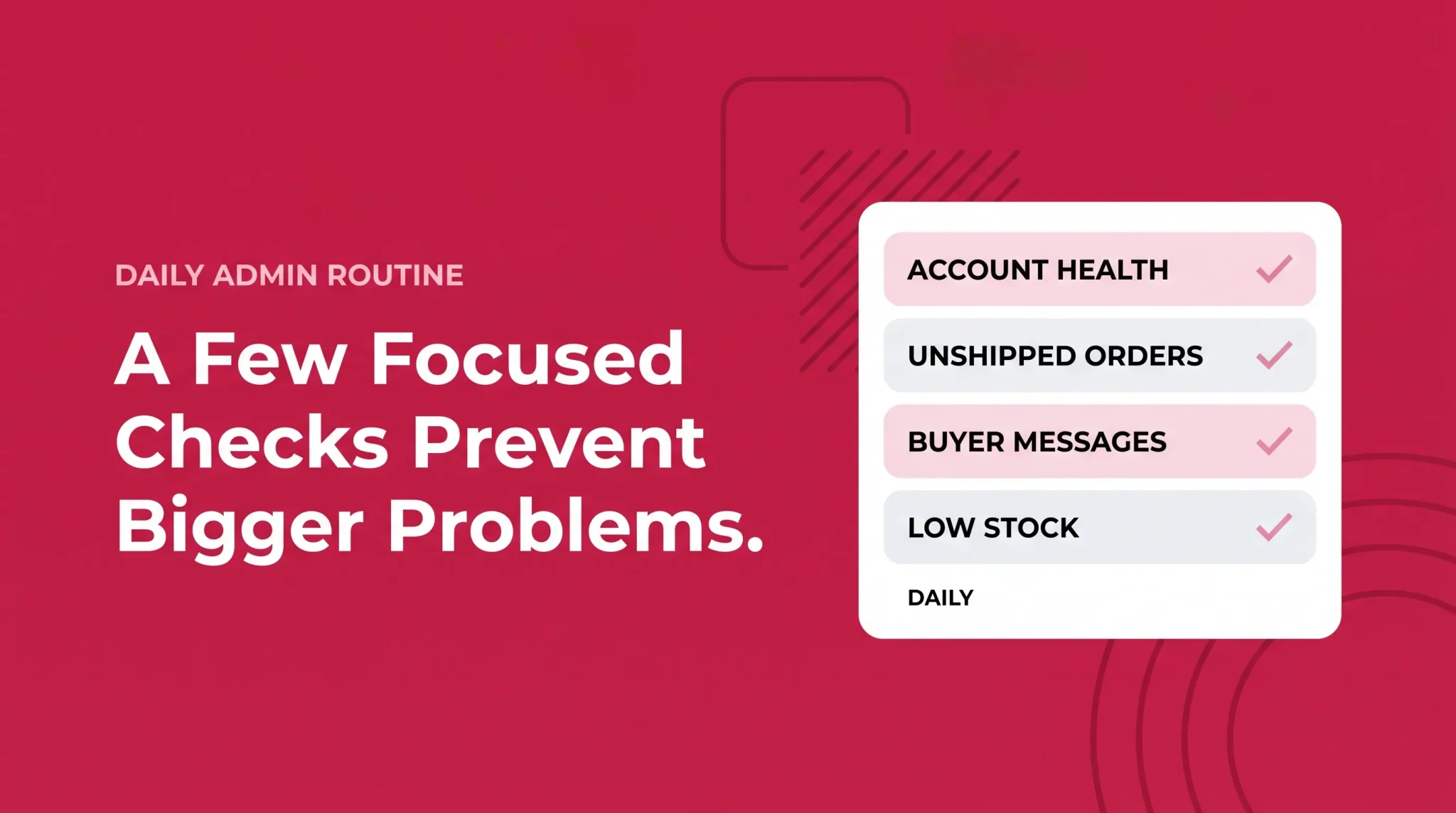
Cadence | What to check | Where |
|---|---|---|
Daily | Account health status, actions panel alerts, unshipped orders, buyer messages, return requests | Top menu, actions panel, Orders workspace |
Daily | Low stock and stranded inventory flags | Supply chain workspace or app |
Weekly | Sales and traffic trend, feedback and reviews, promotions running or ending, support cases open | Homepage, Customers workspace, finance workspace |
Weekly | Policy announcements and performance notifications reviewed properly, not skimmed | Account Health page |
Monthly | Payments reconciliation, fee changes, user permissions audit, notification settings review | Payments Dashboard, settings |
The daily block should take minutes, not an hour. If it consistently takes longer, the usual causes are an uncustomized homepage, notifications that were never tuned, or work that should have been delegated.
One rule that pays for itself: never end the day with an unread performance notification. Announcements can wait. Anything with a deadline cannot.
User Permissions and Delegating Safely
Sharing one login across a team is the most common admin mistake in Seller Central, and it is entirely avoidable. Amazon provides user permissions under the gear icon in the top menu, where the account owner invites additional users and assigns access.
The account owner is the primary user with full control. Invited users are secondary users with scoped access, which means you can give a virtual assistant order management without handing over payment details or account settings. Permission availability varies by selling plan, so check what your plan supports.
Security settings matter here too. Amazon has required two-step verification for Seller Central sign-in since March 28, 2024, using either a mobile number or an authenticator app (Amazon Seller Central announcement, March 2024). Amazon recommends an authenticator app for accounts with several users, and that recommendation is worth following: SMS codes to one person's phone become a bottleneck the moment that person is unreachable.
Audit permissions on a schedule. Contractors leave, agencies get replaced, and stale access is a risk nobody notices until it matters.
Where Sellers Get the Dashboard Wrong
A few patterns show up again and again in accounts that feel harder to run than they should be.
Reading the homepage as a profit dashboard. Sales widgets are directional. Profit lives in the payments and fee detail, and the two can move in opposite directions.
Collapsing the actions panel permanently. It exists to interrupt you. Hiding it means alerts get discovered late, which is exactly when they cost the most.
Letting notification volume train the team to ignore alerts. If everything pings, nothing does. Prune aggressively and keep the high-signal streams loud.
Treating pending orders as a problem to solve. They usually resolve on their own. Chasing them creates work and occasionally causes cancellations you did not need.
Running the account from a phone. The app is excellent at response and poor at analysis. Know which mode you are in.
Getting More Out of the Account You Already Have
Seller Central rewards familiarity more than most software. The sellers who find it manageable are not using different tools, they are using the same tools in a predictable order, with the homepage arranged around their actual questions and the noisy notifications switched off.
Start with the five zones. Customize the homepage. Tune notifications once, properly. Set up permissions so the right person handles the right queue. Then hold a daily routine for a month and watch how few surprises reach you.
From here, the natural next steps depend on what you are trying to fix. If listings are the constraint, work on listing quality. If traffic is fine but sales are not, look at conversion. If you need to understand the numbers behind the dashboard, business reports are the place to go. Each of those has its own guide.
Frequently asked questions
Amazon Seller Central is the account portal third-party sellers use to run their Amazon business. It covers listings, orders, inventory, payments, buyer messages, reports, promotions, and account settings behind a single login.