 Raahim Sheikh
Key takeaways
Backend keywords are invisible to shoppers but indexed by Amazon, so they help your product surface for searches that do not fit your visible copy.
The field holds 250 bytes, not 250 words. Go one byte over and Amazon ignores the entire field, giving you the same result as leaving it blank.
Never repeat, and never break the rules. Skip words already in your title and bullets, and leave out competitor brands, your own ASIN, subjective claims and punctuation.
Fill the space with synonyms, misspellings, regional terms and use cases, written as one space-separated string with no commas.
The Platinum Keywords field is dead. Leave it blank and put all your effort into the Generic Keywords field.
Verify indexing after you save. Search your ASIN plus a keyword, or use an index checker, then audit every 30 to 90 days.
Most sellers pour their effort into the parts of a listing shoppers can see: the title, the bullets, the images. Then they either leave the one field that can quietly de-index their whole listing completely blank, or they stuff it with the wrong things and assume it is helping. That field is your backend keywords, and getting it wrong wastes the easiest ranking gain on Amazon.
Backend keywords are the search terms Amazon lets you add behind the scenes, invisible to shoppers but read by the algorithm. Used well, they capture the synonyms, misspellings and long-tail phrases you could not fit into your visible copy. Used badly, or pushed one byte over the limit, they do nothing at all. This guide takes you from what backend keywords are, through the exact rules Amazon enforces, to how to write them step by step, with a good string shown next to a bad one so you can see the difference.
What Are Amazon Backend Keywords (Search Terms)?
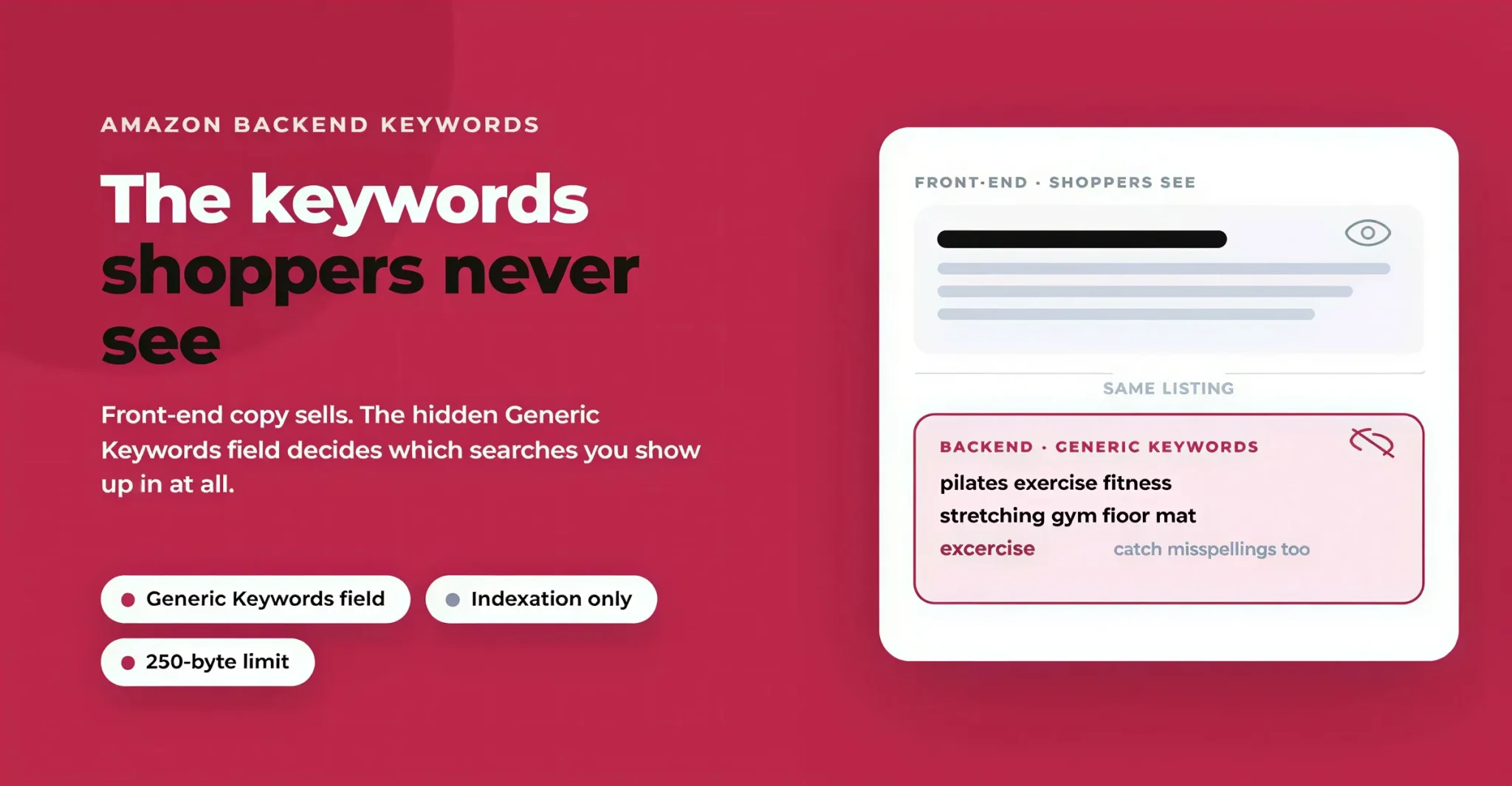
Amazon backend keywords are search terms you enter in the Keywords tab of Seller Central when editing a listing. Shoppers never see them. Amazon's algorithm reads them and uses them to decide which searches your product is eligible to appear in. Amazon's own name for the main field is Generic Keywords, though it is often labelled Search Terms, and sellers call the whole set backend keywords or hidden keywords. They all mean the same thing.
Backend Keywords vs Front-End Keywords
The clearest way to understand backend keywords is by what they are not. Front-end keywords are the terms in the parts of your listing shoppers read: the title, bullet points and description. They do double duty, helping you rank while also persuading the shopper to buy. Backend keywords do one job only: indexation. They tell Amazon about the extra searches your product should show up for, without cluttering the copy a customer sees.
A yoga mat listing might have "non-slip yoga mat, 6mm, eco-friendly" on the front end, while the backend quietly adds "pilates exercise fitness stretching gym floor mat" and the common misspelling "excercise". Together they cover far more of how real shoppers search than either could alone.
Why the Field Is Called Generic Keywords
The label trips people up, so it is worth stating plainly. The Generic Keywords field is the only backend field that meaningfully affects search indexing. Other boxes in the Keywords tab (Target Audience, Subject Matter, Other Attributes) add minor context, and the old Platinum Keywords box does nothing at all. When this guide says backend keywords, it means the Generic Keywords field. That one field is worth understanding properly, because of what it quietly does for your visibility.
Why Backend Search Terms Matter for Amazon SEO
It is a fair question why a field no shopper ever sees deserves your attention. The answer is that it decides which searches your product can even appear in, and that happens one step before ranking.
How Backend Keywords Influence Indexing and Rankings
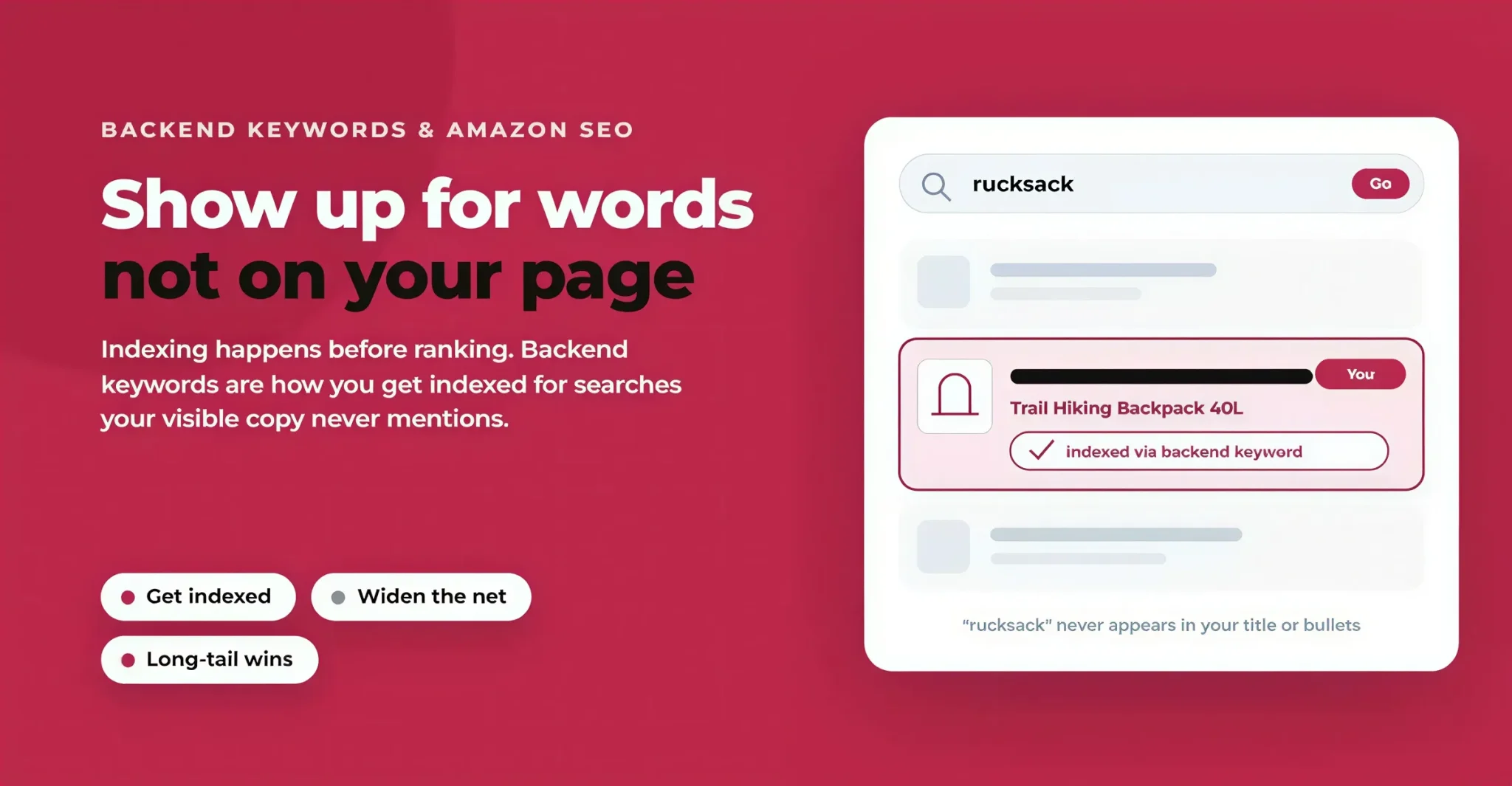
Indexing is the step before ranking. Amazon can only rank your product for a search if your listing is indexed for that term, meaning Amazon has connected the two. Backend keywords are one of the ways you create that connection for terms your visible copy does not contain. Add "rucksack" to the backend of a hiking backpack listing and you become eligible to appear when someone searches "rucksack", even though the word never shows on your page.
What Backend Keywords Can and Cannot Do
That said, be realistic about the ceiling. Backend keywords get you indexed; they do not, on their own, push you up the results. Where you actually rank for a term depends on relevance, sales history, conversion rate and reviews. So treat the backend as the field that widens the net of searches you can appear in, not a lever that lifts you to page one by itself. That distinction is what keeps you from wasting the space on high-volume head terms you will never rank for, and pointing it instead at the long-tail phrases where backend keywords genuinely earn their place.
Where to Enter Backend Search Terms in Seller Central
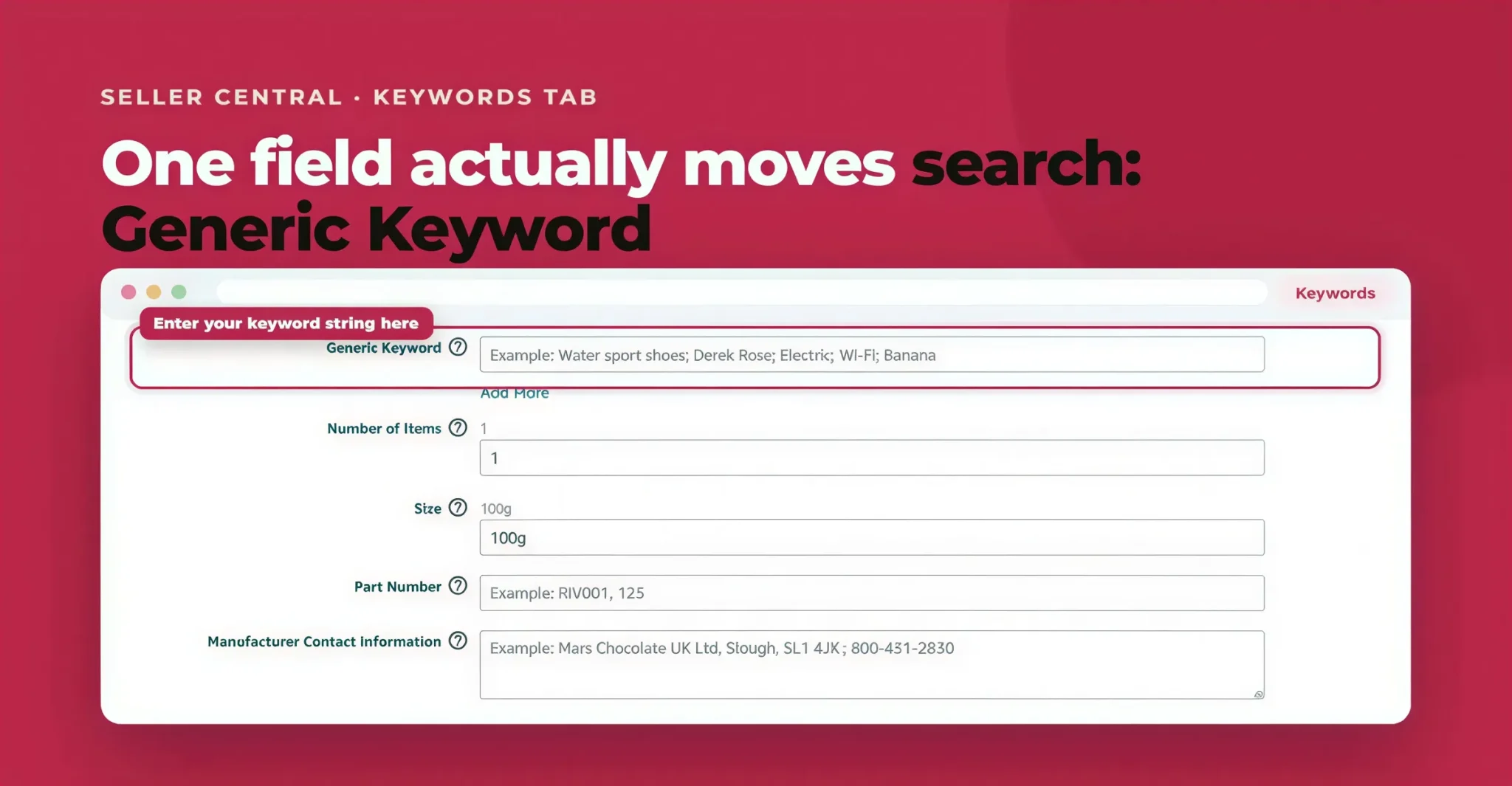
Knowing what the field does is one thing; the next practical question is where to find it and what sits alongside it.
The Keywords Tab: Generic Keywords, Target Audience, Subject Matter
To add backend keywords, open Seller Central, go to Inventory, then Manage Inventory, find your listing and click Edit. Open the Keywords tab. The field that matters is Generic Keywords (shown as Search Terms in some accounts). Enter your keyword string there. The Target Audience and Subject Matter fields can take a few relevant terms for extra context, but their impact is minor next to Generic Keywords. You can read Amazon's own rules in its Search Terms guidelines.
Amazon Platinum Keywords: Myths, Facts and Safe Alternatives
One field in that same tab causes more confusion than any other, so it is worth clearing up before you go further. If you see a field called Platinum Keywords, leave it blank. Here is the fact behind the myth. Platinum Keywords were built for Amazon Platinum Merchants, a discontinued seller tier that had custom storefronts, and the field controlled which terms triggered those custom menus. It was never a general SEO tool. Amazon retired the tier but never removed the field, so it still appears and still confuses people.
As of 2026 the Platinum Keywords field has no effect on indexing, ranking or discoverability. The safe alternative is simple: put every backend term in the Generic Keywords field, and never move keywords out of Generic Keywords into Platinum Keywords, because that removes them from the only field that works. If an older guide tells you to fill in Platinum Keywords for extra space, that advice is out of date.
The Rules: What Amazon Allows and Prohibits
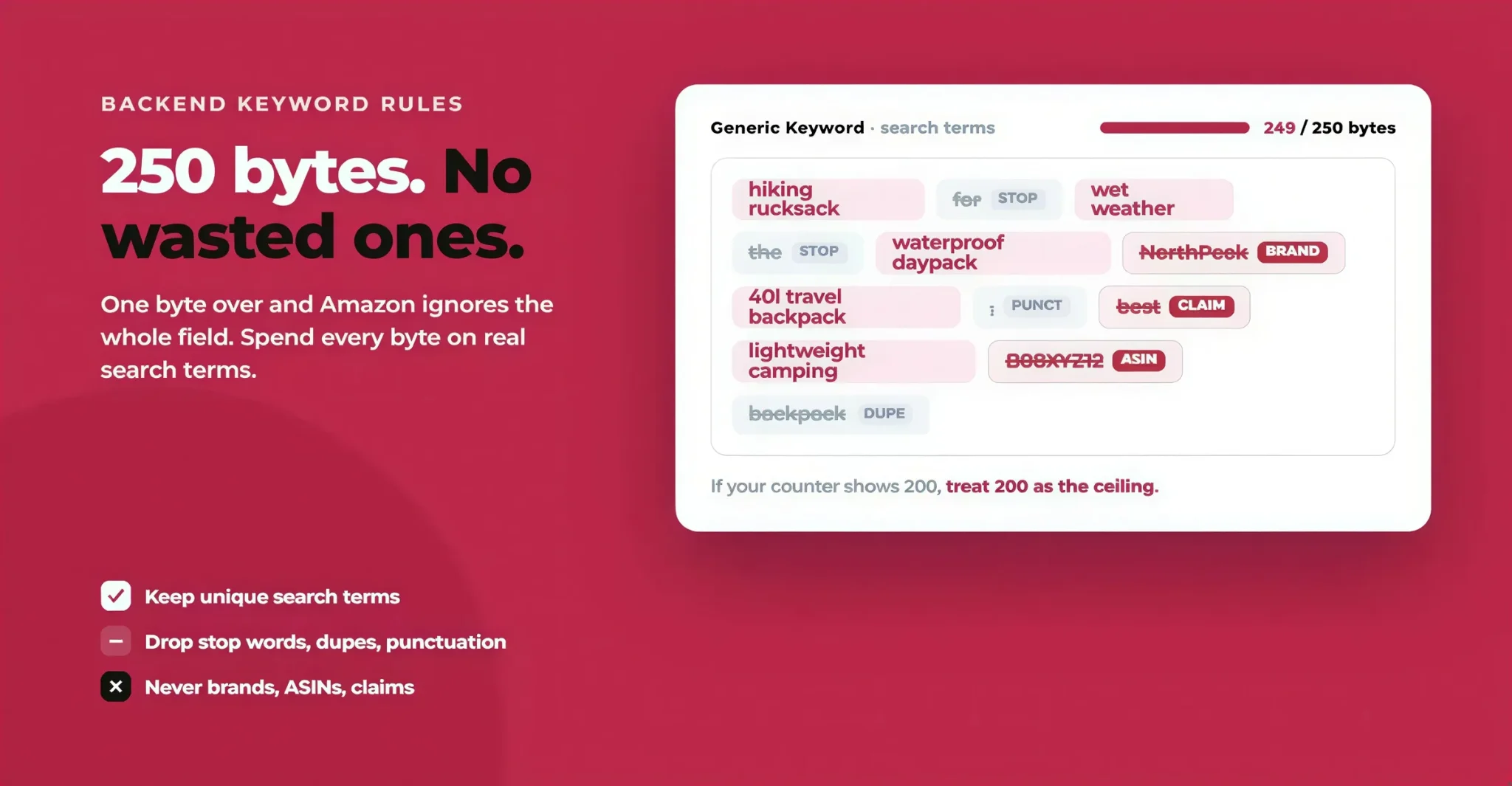
With the field located, the make-or-break part is the rules that govern what you put in it. This is where most backend fields quietly fail, and each rule below has a cost attached to breaking it.
The 250-Byte Limit: Bytes vs Characters
Amazon gives you 250 bytes in the Generic Keywords field, and the critical rule is that it counts bytes, not characters. For standard English letters, numbers and spaces, one character equals one byte, so "yoga mat pilates" is 16 characters and 16 bytes. The gap appears with special characters: an accented letter like é is 2 bytes, and symbols like © or ™ can be 2 to 3 bytes each.
The rule that catches sellers out: if your string goes over 250 bytes by even a single byte, Amazon ignores the entire field, not just the overflow. A listing with 255 bytes of keywords gets exactly zero backend indexing, the same as an empty field. Spaces between keywords do not count toward the limit, because Amazon strips them when processing.
One caveat: some categories and newer listing types show a 200-byte limit instead. Always trust the counter in your own Seller Central field, and if it says 200, treat 200 as your ceiling.
Stop Words, Duplicates and Punctuation Amazon Ignores
The byte limit is unforgiving, which makes wasted bytes expensive. Three things eat your space without adding any value.
Stop words. Common connector words such as; "a", "the", "for", "with" and "and" Are ignored by Amazon's search. Do not spend bytes on them; write "hiking rucksack wet weather", not "a rucksack for hiking in wet weather".
Duplicates. Amazon indexes your title, bullets and description already, so repeating those words in the backend adds nothing. Repeating a word twice inside the backend does nothing either. Every term should appear once, and only if it is not already on the front end.
Punctuation. Separate keywords with a single space. Commas, semicolons and other punctuation are unnecessary, are not used as delimiters, and waste bytes you could spend on real terms.
What to Avoid: Brand Names, ASINs and Subjective Claims
Beyond wasting space, some entries actively work against you and can flag or suppress the listing.
Competitor brand names are a Terms of Service violation. That includes direct names, "alternative to Brand X" phrasing, and even deliberate misspellings of a rival's brand. This can get your listing suppressed.
Your own brand name and ASINs are unnecessary. Your brand is already indexed from the front end, and ASINs, UPCs and ISBNs do nothing in the backend except invite a review.
Subjective and promotional claims such as; "best", "cheapest", "number one", "free shipping" or "sale" Are ignored and can hurt relevance. Keep to descriptive search terms.
How to Check Your Byte Count Before You Save
Because a single byte over the line disables everything, confirm your count before saving. You have three easy ways. Use the character counter shown in the Seller Central field, which is accurate enough for standard English. Paste your string into a free online byte counter for an exact figure. Or, for a precise check, open any web page, press F12, go to the Console and type new TextEncoder().encode("your keywords here").length, which returns the exact byte count.
How to Write Amazon Backend Search Terms, Step by Step
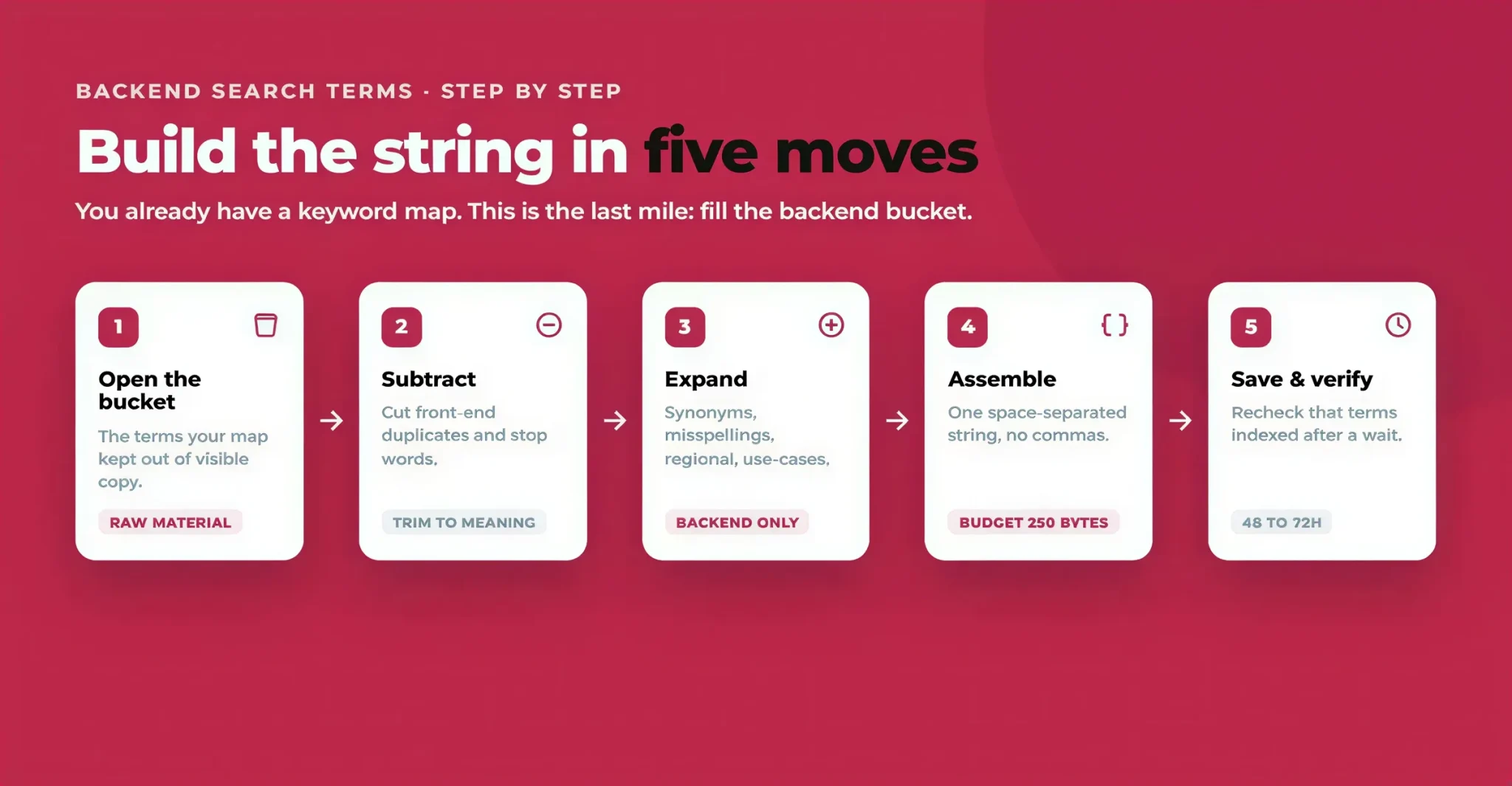
The rules tell you the guardrails; this is how you build the string inside them. Writing the backend field is the last mile of keyword work, not the start of it. The research that produces your terms, mining competitor ASINs, finding long-tail phrases, validating and sorting them, is the same process behind your whole listing, and we cover it in full in our guide to Amazon keyword research and building a keyword map. This section picks up where that leaves off: you already have a keyword map, and now you are filling the backend bucket.
Step 1: Start From Your Keyword Map's Backend Bucket
Open the backend bucket of your keyword map, the relevant terms that did not earn a place in your title, bullets or description. These are your raw material: synonyms, variants and adjacent phrases that are worth indexing but did not fit the visible copy. If you have not built a map yet, do that first, because guessing at the backend without research is how the field ends up full of terms nobody searches.
Step 2: Remove Front-End Duplicates and Stop Words
With the bucket in front of you, the first pass is subtraction. Cross off anything already in your title, bullets or description, since Amazon indexes those words from the front end and repeating them wastes space. Then strip stop words and connectors so only the searchable terms remain. You are trying to fit the maximum number of distinct, useful keywords into a small space, so every byte should carry meaning.
Step 3: Add Synonyms, Misspellings, Regional Terms and Use Cases
Once the list is trimmed, widen it again with the terms only the backend can hold. Add synonyms a shopper might use ("rucksack" for backpack, "thermos" for insulated bottle). Add common misspellings worth capturing ("excercise", "protien"), which you cannot put in visible copy without looking careless. Add regional and abbreviation variants ("carryon", "1 litre", "xl"). And add use-case and audience phrases ("gift for dad", "camping gear", "home office") that describe who buys and why.
Step 4: Write One Space-Separated String and Budget 250 Bytes
Now assemble everything into a single string separated by spaces, no commas, no repeats. Prioritise from the top of your backend bucket down, so that if you run out of room, the least important terms are the ones left off. Then check your byte count and trim until you are safely inside 250 bytes (or 200, if that is what your field shows).
Step 5: Save, Then Verify
Finally, save the listing and confirm the terms actually indexed. Amazon does not re-crawl instantly, so allow 48 to 72 hours before checking, using the verification methods covered later in this guide.
Good vs Bad Backend Search Terms: An Example
Steps are easier to trust when you can see them applied, so here is the same yoga mat listing done badly and then well.
Bad backend string: yoga mat, yoga mat, best yoga mat for yoga, GymBrandX, B08XXXXXXX, free shipping!!!
Almost everything here breaks a rule. It uses commas, repeats "yoga mat" (which is already in the title), includes the subjective claim "best", names a competitor brand, drops in an ASIN, adds a promotional phrase, and wastes bytes on punctuation and the stop word "for". Much of this field will be ignored, and the brand name could flag the listing.
Good backend string: pilates fitness workout stretching meditation gym floor anti-slip grip extra thick nonslip excercise home balance core eco tpe
This one works. It uses only space separation, avoids every word already on the front end, adds real synonyms and use cases, captures the misspelling "excercise", includes a material term ("tpe"), and comes in well under 250 bytes with no prohibited terms.
Amazon Backend Keyword Examples by Product Category
That is one product. The same pattern holds across categories, and the table below shows what a strong backend string looks like for several. The front-end column shows terms already indexed from the title and bullets, which you should not repeat; the backend column shows what to add. Every string is under 250 bytes and space separated.
Product | Front-end (already indexed, do not repeat) | Backend string (under 250 bytes) |
|---|---|---|
Non-slip yoga mat, 6mm | yoga mat, non-slip, 6mm, eco-friendly, exercise | pilates fitness workout stretching meditation gym floor anti-slip grip extra thick nonslip excercise home balance tpe |
Stainless steel water bottle, 32oz | water bottle, stainless steel, insulated, 32oz, leak proof | thermos flask tumbler hydration canteen sport gym reusable cold hot drinkware travel mug 1 litre wide mouth bpa free |
Wireless Bluetooth earbuds | wireless earbuds, bluetooth, noise cancelling, true wireless | earphones headphones tws in-ear sport running gym waterproof cordless handsfree mic call latency pairing earbud |
Vitamin D3 5000 IU softgels | vitamin d3, supplement, immune support, 5000 IU, softgel | cholecalciferol vitamine sunshine vitamin d deficiency vit d3 immune booster calcium absorption seasonal mood daily |
Backend Keywords for Product Variations
Those examples all assume one product with one listing. Two situations complicate that, and variations are the first. If you sell products with different sizes, colours or styles, the safe rule is to enter backend keywords on each child ASIN, not just the parent. Amazon's handling of parent-to-child keyword inheritance is inconsistent, so relying on it risks leaving variations unindexed. Tailor each child where it helps: a large variant can carry "jumbo oversized xl", a small one "compact mini travel size". If you manage listings by flat file, populate the Generic Keywords column for every child row, because a blank column means that variation has no backend keywords at all.
Backend Search Terms for International Marketplaces
Selling abroad is the second complication. Expanding into Germany, France or Japan means localising the backend, not translating it. Machine translation misses how people actually search: a German shopper looking for a hiking backpack may search "wanderrucksack", which a literal translation would never produce. Use localised keyword research or a native speaker for each marketplace, and treat each one as its own backend field with its own 250-byte budget.
How to Verify Your Backend Keywords Are Indexed
Whether you sell one product or fifty across five marketplaces, the step everyone skips is the same: confirming the terms actually indexed. Adding keywords does not guarantee Amazon accepted them, because byte overflow, prohibited terms or a listing suppression can all block indexing. Check with one of three methods.
Method 1: Manual ASIN and Keyword Search
In the Amazon search bar, type your ASIN, a space, then the keyword, for example B0XXXXXXXX yoga strap. If your product appears, the term is indexed. If it does not, the term is either not indexed or your listing is suppressed for it. This is quick for a few terms and impractical for many.
Method 2: Helium 10 Index Checker
For bulk checking, open Helium 10's Index Checker, enter your ASIN, paste your backend terms one per line, and run it. You get a clear indexed or not-indexed result for each. For anything not indexed, swap it for a close synonym and re-check after 48 to 72 hours.
How Often to Audit and Update Your Backend Keywords
Verifying once is not enough, because listings and search behaviour keep changing. Revisit your backend keywords every 90 days, and always when you launch a product, notice a drop in impressions, or head into a seasonal shift. Pull your Search Term Reports monthly to spot new converting queries worth adding, and drop terms that never index or never convert. A short, regular audit keeps the field working as search behaviour and competitors move.
Common Backend Keyword Mistakes to Avoid
A regular audit also protects you from the handful of mistakes that quietly undo backend work, so they are worth naming in one place. Repeating front-end words in the backend, thinking it reinforces ranking, when Amazon simply ignores the repeat. Going over the byte limit and losing the whole field. Adding competitor brand names or ASINs and risking suppression. Spending bytes on stop words, commas and subjective claims. And leaving child ASINs or flat-file rows blank, so entire variations never index. Avoid those five and your backend is already ahead of most listings in your category.
Conclusion
Backend keywords are the quietest part of your listing and one of the easiest wins on Amazon. Fill the Generic Keywords field with the synonyms, misspellings, regional terms and use cases your visible copy cannot hold, write them as one clean space-separated string under 250 bytes, skip the brands, ASINs, stop words and repeats, and verify that they indexed. Do that, and your product becomes eligible for hundreds of searches it was silently missing.
Flairox Listings
Optimize the Keywords Shoppers Never See
Turn your keyword strategy into optimized titles, bullet points, descriptions and backend search terms with AI-assisted listing creation, all organized in one workspace.
Optimize Your Listing Free → Search Terms 218 / 250 bytes pilates fitness stretching workout non-slip Byte limit Within limit ✓ ✓
Frequently asked questions
They are search terms you enter in the Keywords tab of Seller Central, in the Generic Keywords field, that shoppers never see. Amazon's algorithm uses them to index your product for searches that do not appear in your title, bullets or description, letting you capture synonyms, misspellings and long-tail phrases without cluttering your visible copy.