 Bilal Siddiqui
You wake up, grab your coffee, and check your Seller Central dashboard. You’re expecting the usual sales velocity, but instead, you see something that makes your stomach drop.
Zeros.
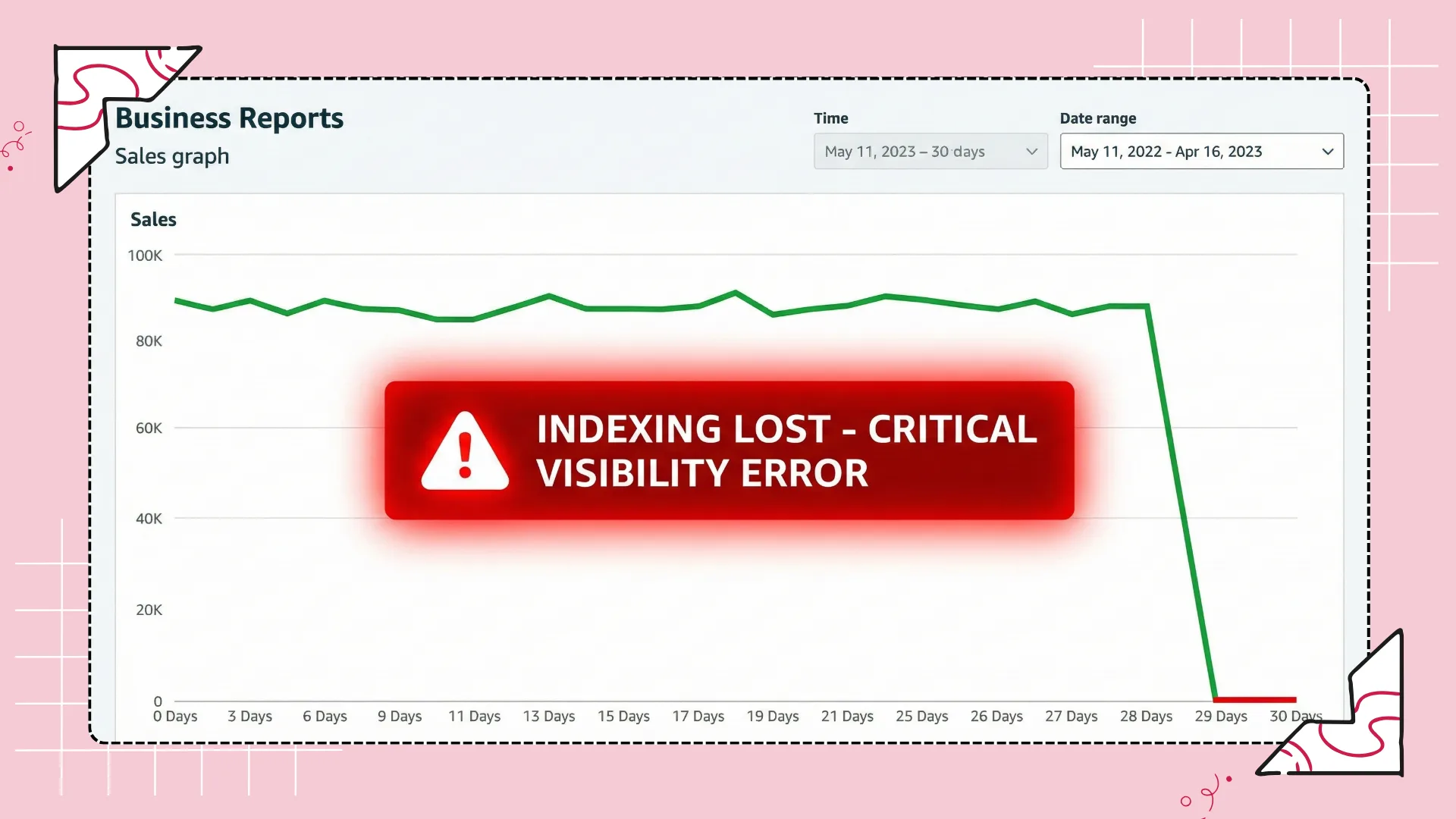
Your best-selling product has flatlined. You rush to Amazon, type in your main keyword, and scroll. Page 1... nothing. Page 2... nothing. You search for the exact ASIN. Still nothing.
Panic sets in. You are not just losing rank. You are invisible.
If this is happening to you right now, take a breath. In most cases, your product has not been deleted. It has likely lost indexing for one or more keywords, or it is suppressed for a policy reason.
The good news? It is fixable. Usually, it is a technical trigger, a listing change, or a compliance issue that can be reversed.
In this guide, you will follow a simple diagnosis flow to figure out why Amazon search is not showing your product and what to do next. This page stays focused on troubleshooting and recovery. Deep dives like backend byte limits, stop-word traps, and keyword placement rules live in separate guides (linked when needed).
Understanding the Basics: Ranking vs. Indexing
Before we start changing anything, we need to be 100% clear on the problem. Most new sellers confuse "Ranking" with "Indexing," but they are two different things.
Amazon SEO: How Amazon Search Works for Product Listings
Think of Amazon’s database like a giant public library.
Indexing is the library catalog. If your book (product) is indexed, it is listed in the system. A customer can find it if they search for it.
Ranking is which shelf the book sits on. Is it on the display stand at the entrance (Page 1), or buried in the archive (Page 10)?
Difference between "Not Indexing" (Invisible) and "Low Ranking" (Buried)
This matters because the fix is different.
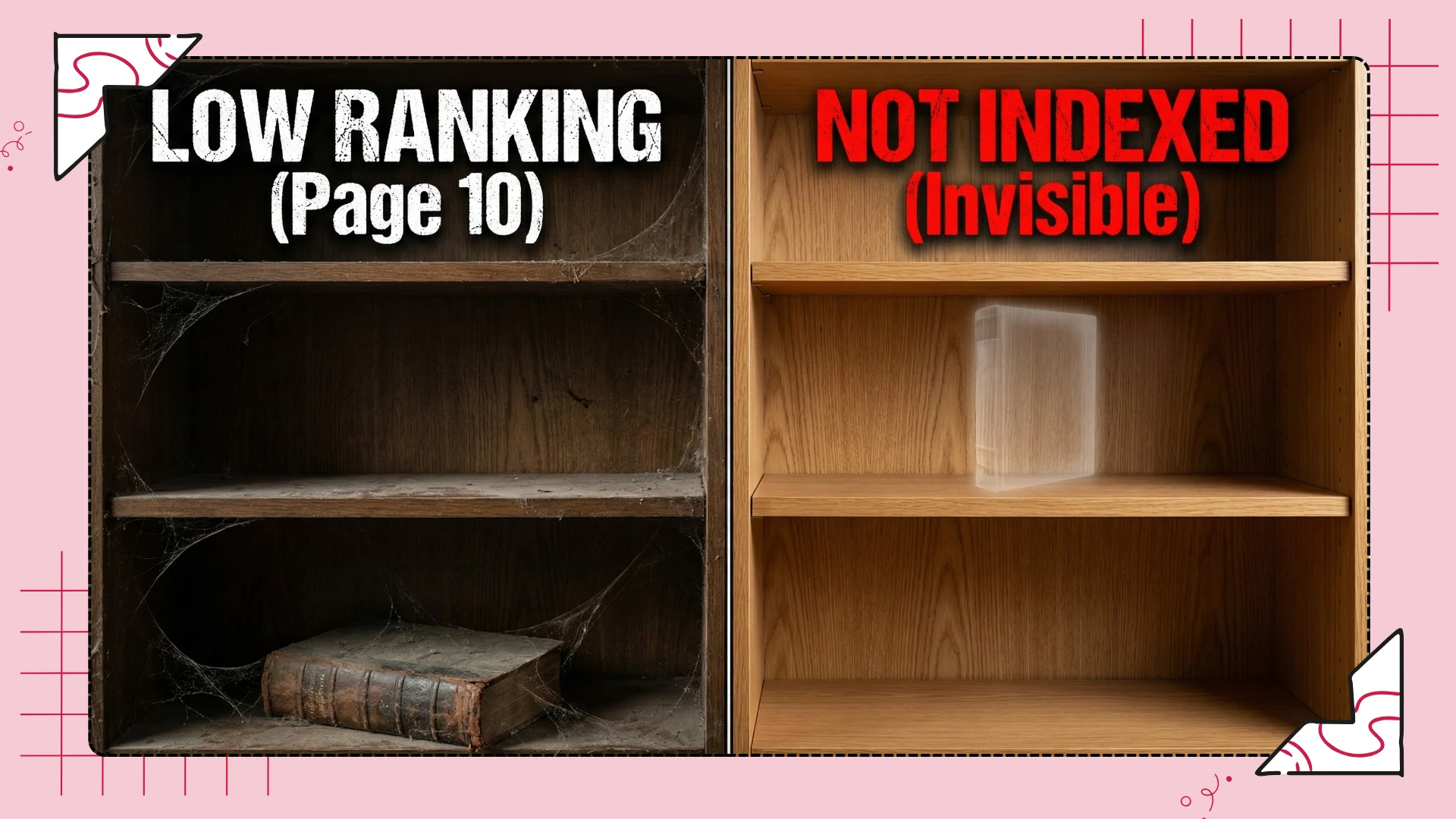
Low Ranking: You are searchable, but buried. The fix is usually conversion improvements, offer improvements, and PPC to rebuild sales signals.
Not Indexing: You do not exist for that keyword. If Amazon has not indexed you for "garlic press," your ad can struggle to show for that term too.
How do you know which one it is?
Run a simple manual test. Go to Amazon and search for:
ASIN + Keyword
(Example: B0D7XLTJ9X + garlic press)
If your product shows up, you are indexed (you are just ranked poorly).
If you see "No results found," you are not indexed for that term.
Pro Tip: Checking every keyword manually is slow. Focus on your top 3 to 10 revenue-driving terms first.
💡 Pro Tip
Stop Guessing. Check Your Indexing Status Instantly.
Don’t waste hours typing ASINs manually. Use the Flairox Listing Free Audit to quickly check if your main keywords are indexed or suppressed.
Step 1: Diagnose the Root Cause
Okay, we have confirmed the problem. Now we need to find out why it happened.
Amazon does not hide a product for fun. Indexing issues are often triggered by a change or a system event: a title update, a category shift, an out-of-stock moment, or a compliance flag.
Common triggers that remove indexing overnight
Before you contact Amazon Seller Support, run through this quick checklist. These are the most common causes of sudden invisibility:
Category or browse-node changes: Amazon’s system can move your product into a new category. If the new context does not match your main keywords, visibility can drop.
Adult or sensitive-term flags: Certain words (even innocent ones) can trigger filters that hide a listing from general search.
Inventory and offer glitches: If inventory hit zero, your offer changed, or the buy box changed, indexing and discoverability can lag. Some issues resolve within 24 hours.
Check for suppression and policy flags first
There is a difference between a listing that is "Inactive" and one that is "Suppressed."
If your listing shows as "Active" in Seller Central but you cannot find it, you may be search suppressed. This can happen because of image issues, title violations, or missing required attributes.
Manual check:
Go to Seller Central > Inventory > Manage All Inventory. Use the "Search Suppressed" filter. If your product is listed there, Amazon will usually show what needs fixing.
Shortcut:
If you want the full list of common suppression triggers and what they look like, use: Amazon listing policy checker (common violations).
Step 2: Backend Search Terms (Quick Triage)
If your listing is active and not suppressed, the next place to check is your backend search terms. Customers cannot see this field, but bad entries can reduce indexing for the terms you care about.
What to do (without overcomplicating it)
You do not need a long theory here. Run these three checks:
Remove duplicates: Do not repeat words already present in your title and bullets.
Remove junk: Do not waste space on filler words, punctuation, or repeated variations.
Stay within the limit: Amazon enforces a byte-based limit. Going over can reduce how much of the field is used.
If you want the full backend strategy (what to include, what to avoid, and how to improve indexing), use this guide: Amazon search terms: backend strategy that improves indexing.
If you suspect your backend is causing indexing issues due to stop-words, duplicates, or formatting traps, use: Stop-word and duplicate traps that cause indexing issues.
If you need the detailed byte explanation (and how to avoid going over), use: Backend keywords character limit: how to fit more without stuffing.
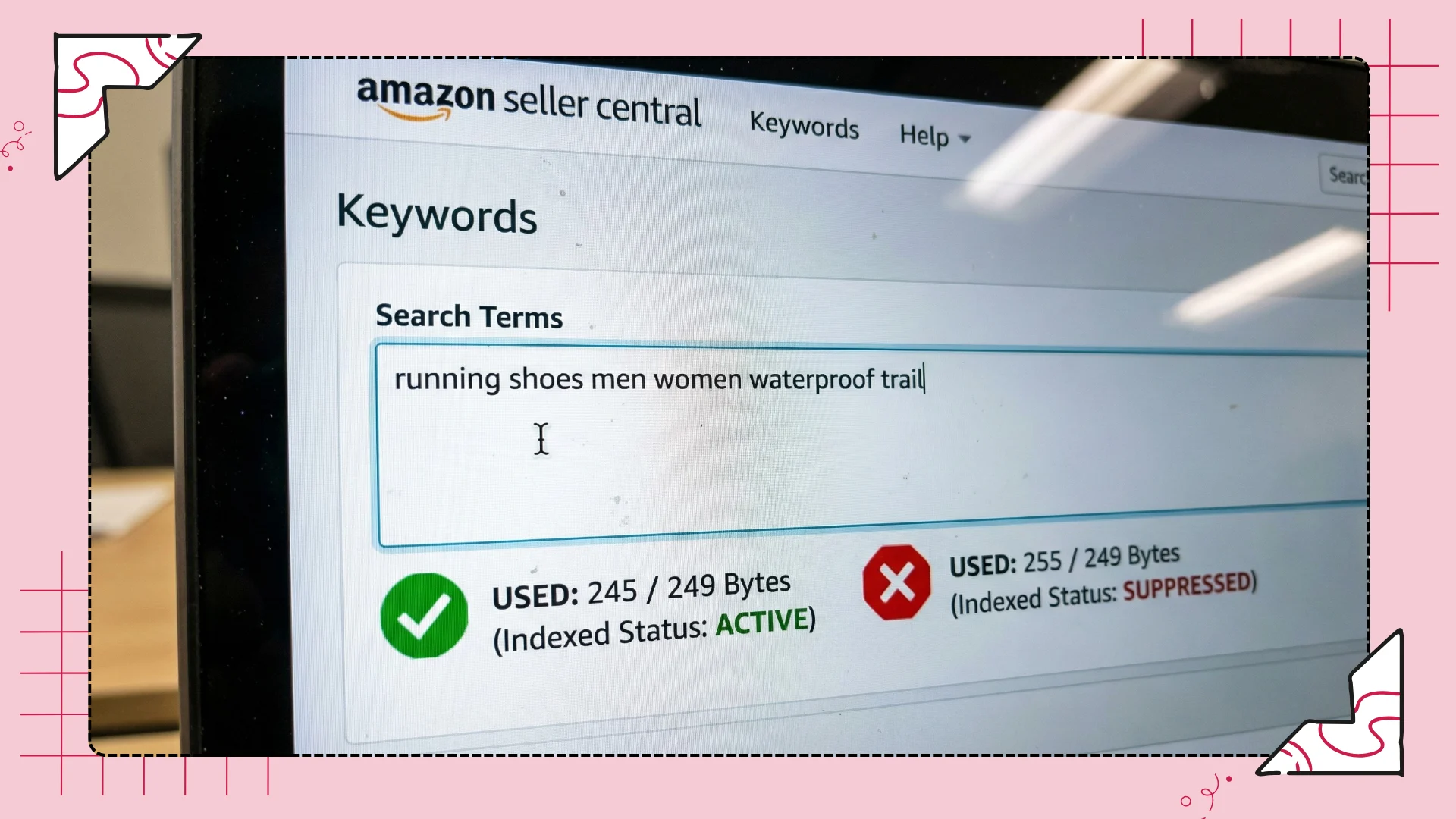
How Flairox Listing helps:
If you are not sure which backend terms to keep, Flairox Listing highlights keyword gaps against direct competitors so you fill backend space with relevant terms instead of guessing.
Step 3: Frontend Fixes (Title + Bullets) to Restore Relevance
Backend fixes help, but your frontend content still matters. Your title and bullets tell Amazon what you sell and tell shoppers why they should buy.
The goal is balance: include the main buyer language naturally, but keep the copy readable. If it reads like a robot wrote it, customers bounce, conversion drops, and performance becomes unstable.
Quick fixes that usually move the needle
Make the product type clear early: Do not hide the main product name at the end of the title.
Use buyer language in bullets: Write benefits, then support with features.
Avoid policy-trigger phrases: Skip subjective claims like "best" or "number one" unless you can verify them.
If you want exact keyword placement rules across title, bullets, and backend, use: Keyword count and placement guide.
If you want a full writing playbook for listing copy (titles, bullets, descriptions), use: Amazon SEO listing optimization guide.
Find keyword gaps (without guessing)
Search language changes over time. A term that worked six months ago might not be what buyers search today. That is why "keyword gaps" happen.
How Flairox Listing helps:
Flairox compares your current frontend copy against strong competitors and highlights missing high-intent terms in your title and bullets, so you know what to update first.
Mistakes that can hurt indexing and visibility
Keyword stuffing: "Garlic Press Presser Mincer Crusher Kitchen Tool" looks spammy.
Repeating words: Repeating "kitchen" five times wastes space.
Subjective claims: Claims like "best quality" can trigger policy flags.
Step 4: Protect Your Visibility
Once you fix indexing, your job is to prevent it from happening again. Competitors change their listings. Amazon changes filters. A listing that is healthy today can break next week.
Weekly routine (simple defense)
You do not need a complicated system to start. Do this every week:
Check "Manage Inventory" for suppressed listings.
Look for sudden dips in sessions or conversion rate.
Run the ASIN + keyword test on your top 3 keywords.
If you want a full weekly routine, use: Amazon listing monitoring weekly routine.
Track rankings without wasting time
Manual checks work for one product. If you have many SKUs, you need a tracking set and a cadence.
Use this guide: Amazon keyword rank tracking routine.
When a drop should trigger action
Not every small movement is a crisis. What matters is indexing loss, suppression, and major rank band drops.
If your rankings drop suddenly and you need a diagnosis checklist, use: Amazon keyword ranking drop checklist and fixes.
The Flairox Solution:
Flairox Listing can notify you if your listing becomes suppressed or if key keywords lose visibility, so you can fix small issues early instead of panic-fixing after sales drop.
Final Thoughts: Don’t Let a Glitch Kill Your Business
I know how stressful it is when your product vanishes. You have poured money into inventory, photos, and ads, and seeing "0 Sales" feels brutal.
But most Amazon indexing issues are fixable. The key is to diagnose the problem correctly and fix the right layer first.
To recap, here is your action plan:
Check: Is it a ranking issue (buried) or an indexing issue (invisible)?
Audit: Check for suppression flags and required attribute issues.
Clean: Remove duplicates and junk from backend search terms, and stay within limits.
Fix: Make title and bullets clear, readable, and aligned to buyer intent.
Monitor: Run weekly checks so you never get blindsided again.
You can do all of this manually. Or, you can save time by using a tool that makes the checks faster.
💡 Pro Tip
Ready to Fix Your Listing Right Now?
Don’t leave your revenue to chance. Every minute your product is invisible, your competitors are stealing your customers.
Get Your Free Indexing Audit with Flairox Listing
Instantly check for suppression.
Fix backend errors faster.
Monitor your keyword rankings over time.
Frequently asked questions
Usually, the Amazon algorithm updates within 15 minutes to 24 hours. If you fixed a "Suppressed" listing, it might take up to 48 hours to fully reappear in search results. If it takes longer, open a case with Amazon Seller Support.